
Welcome to lulaFi
Smart and secure forms for your convenience. This guide shows you, task by task, how to find providers, submit forms and message securely — with real screens from the app.
Start here
Quick start
The five things most people do in lulaFi.
What is lulaFi?
Forms, secure messaging and safety tools in one app.
lulaFi is a mobile app for smart and secure forms. Find a service provider, fill in one of their forms from your phone, and talk to them afterwards through end-to-end encrypted chat called lulaSEM. Your personal details live in a protected Data Safe on your phone so forms fill themselves in.
| Term | Meaning |
|---|---|
| lulaSEM | lulaFi's secure chat. One conversation is "a lulaSEM". |
| Data Safe (vault) | Your personal details, stored only on your phone and locked with Face ID, fingerprint or a PIN. |
| Provider | An organisation that publishes forms and receives your submissions. |
| Submission | A completed form you sent. Each one has a reference ID and its own conversation. |
| OTP | The 6-digit one-time PIN sent to your phone when you sign in. |
Getting started
Create an account or sign in
Your mobile number is your login — no password.
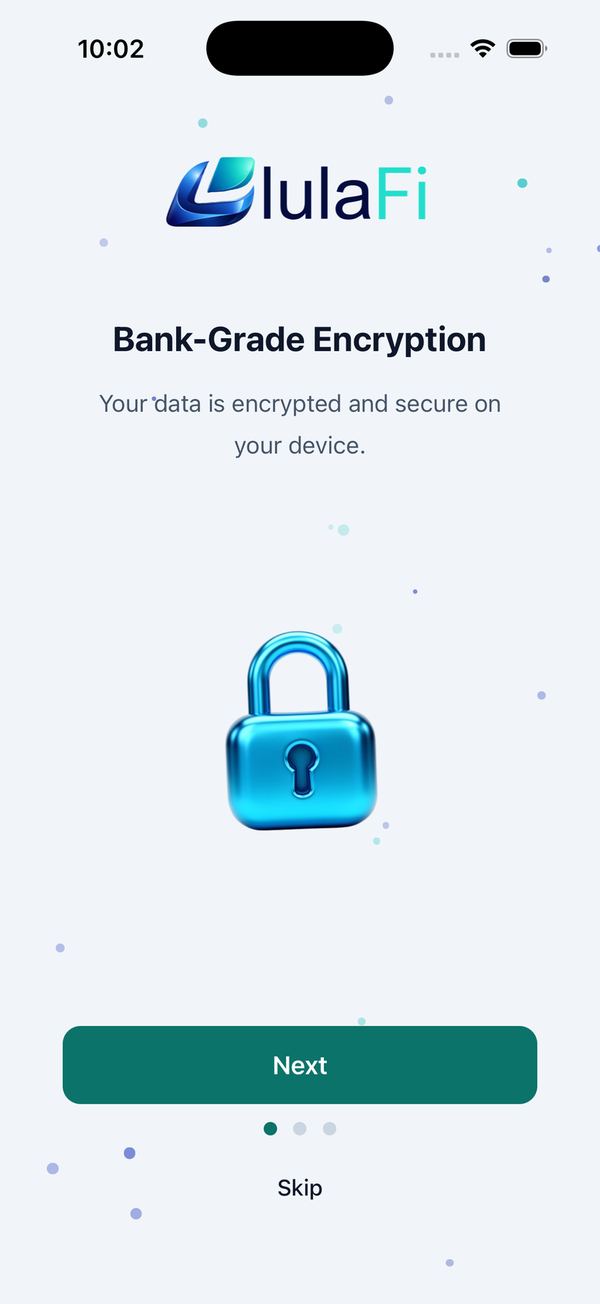
- Open lulaFi. Swipe through the three welcome slides or tap Skip, then Get Started.
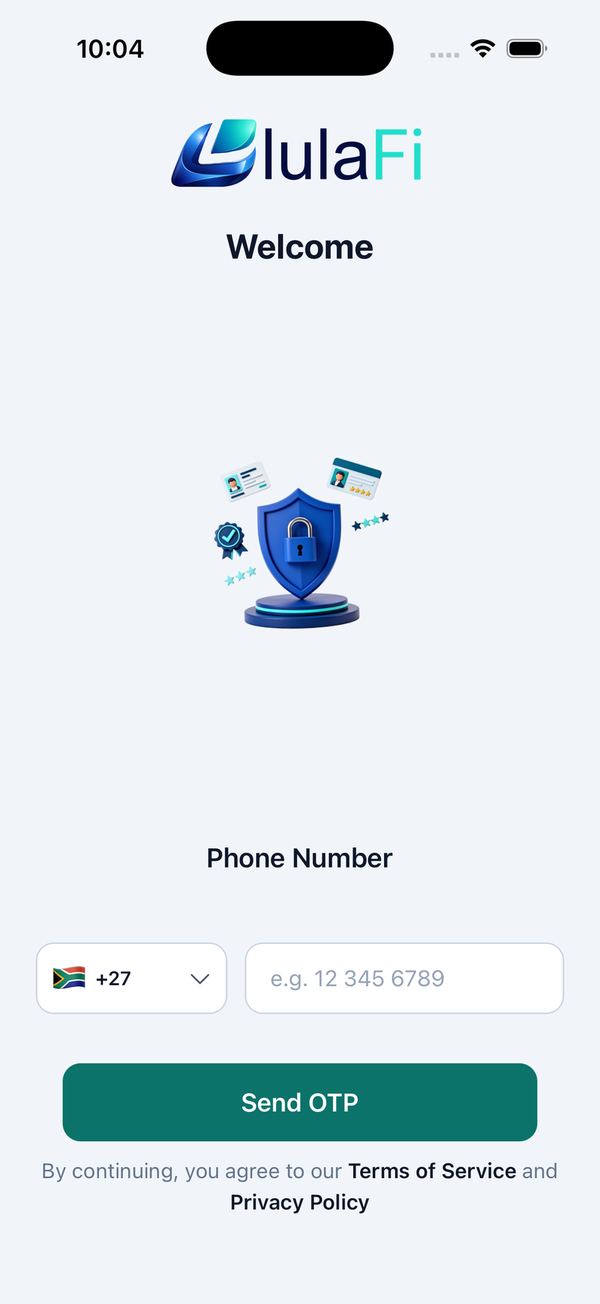
- Tap the flag to pick your country, type your mobile number and tap Send OTP.
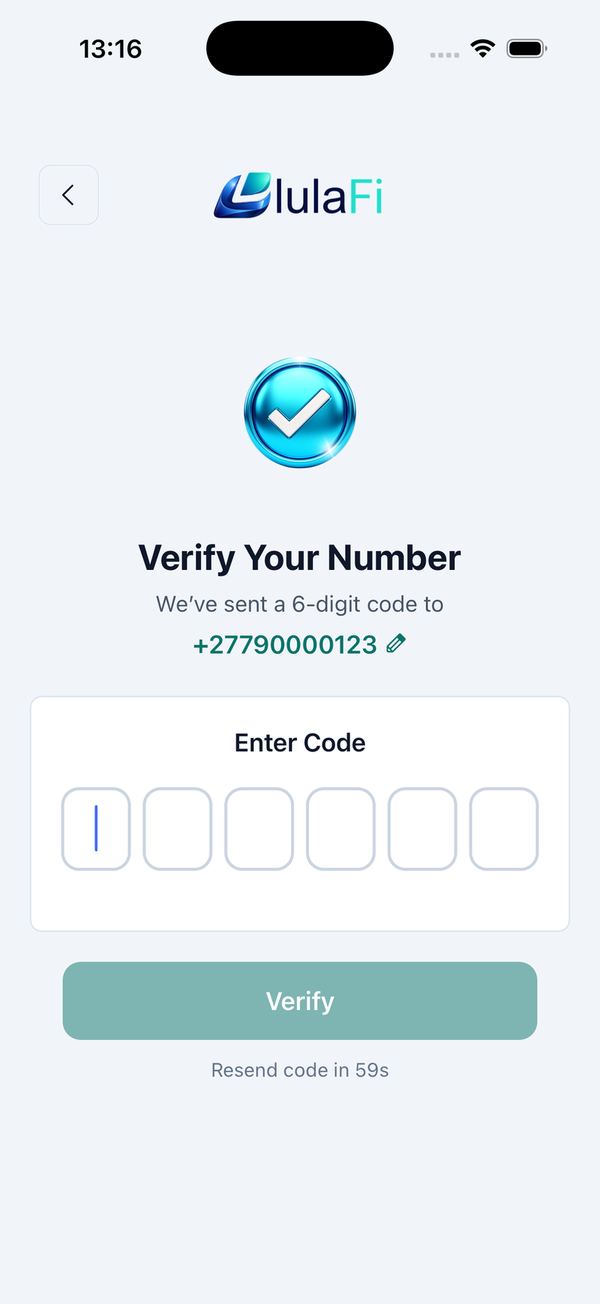
- Enter the 6-digit code from the SMS. It is checked automatically as you type the last digit.
- First time? Type the name people will see in chat and tap Continue.
Change the language
Eleven South African languages.
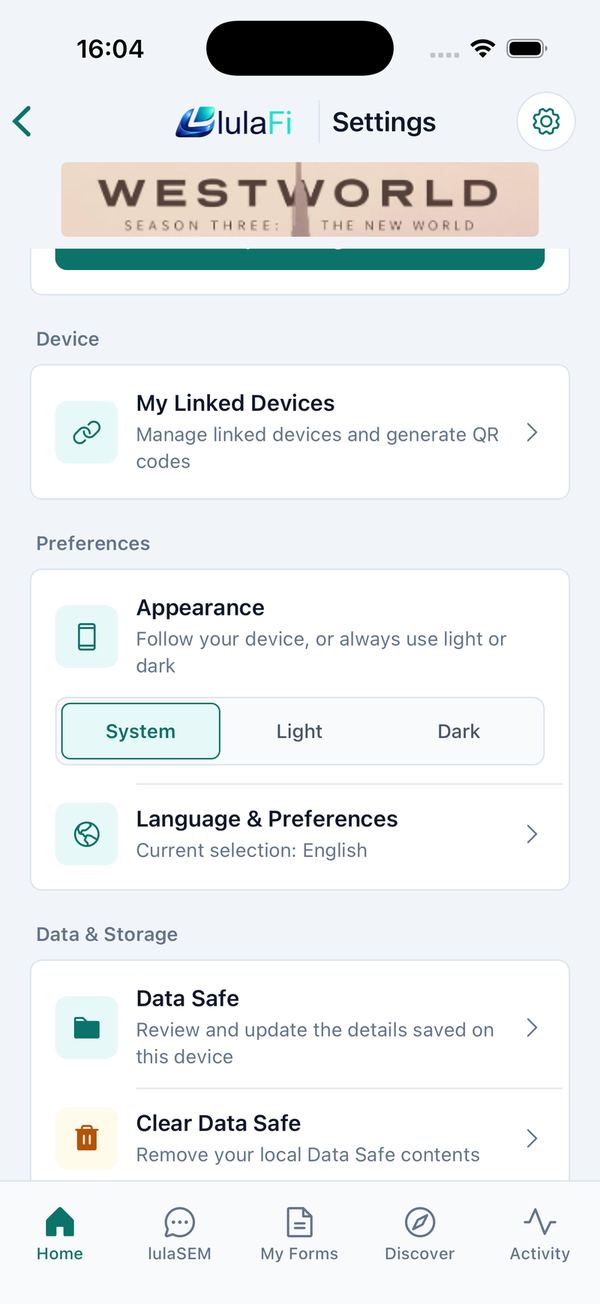
Tap a language under Available Languages. lulaFi confirms with Language changed successfully! Available: English, Afrikaans, isiNdebele, Sesotho sa Leboa, Sesotho, siSwati, Xitsonga, Setswana, Tshivenda, isiXhosa and isiZulu.
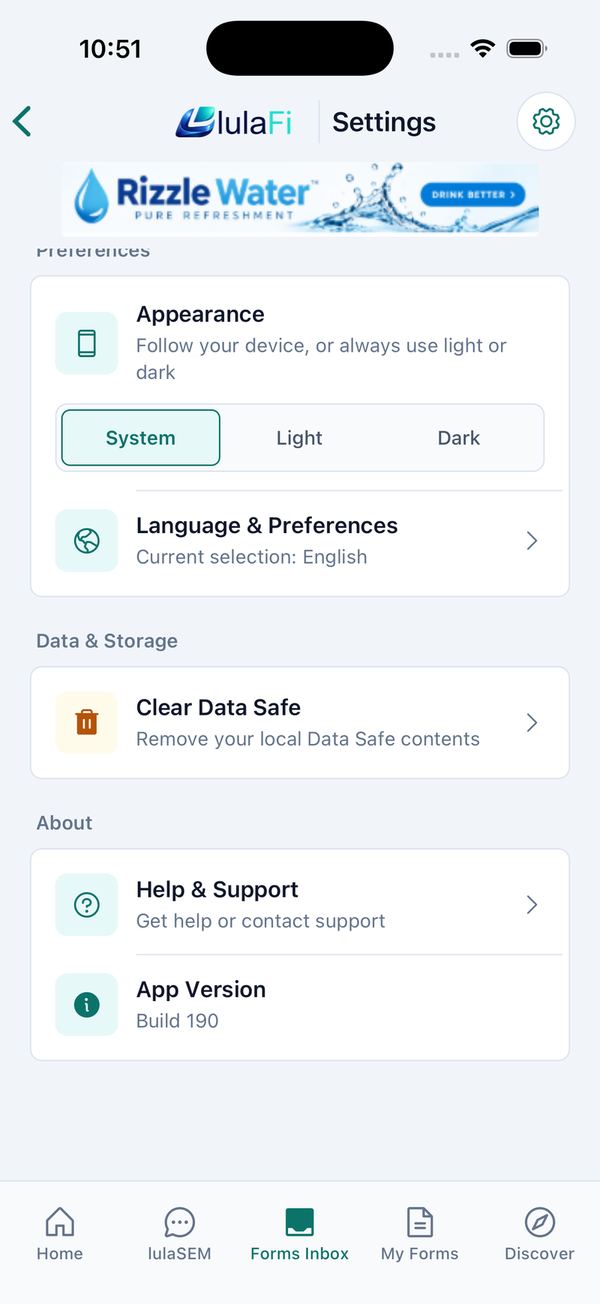
In the same Preferences card, Appearance lets you follow your phone (System) or always use Light or Dark.
Find your way around
The Home screen and the five tabs.
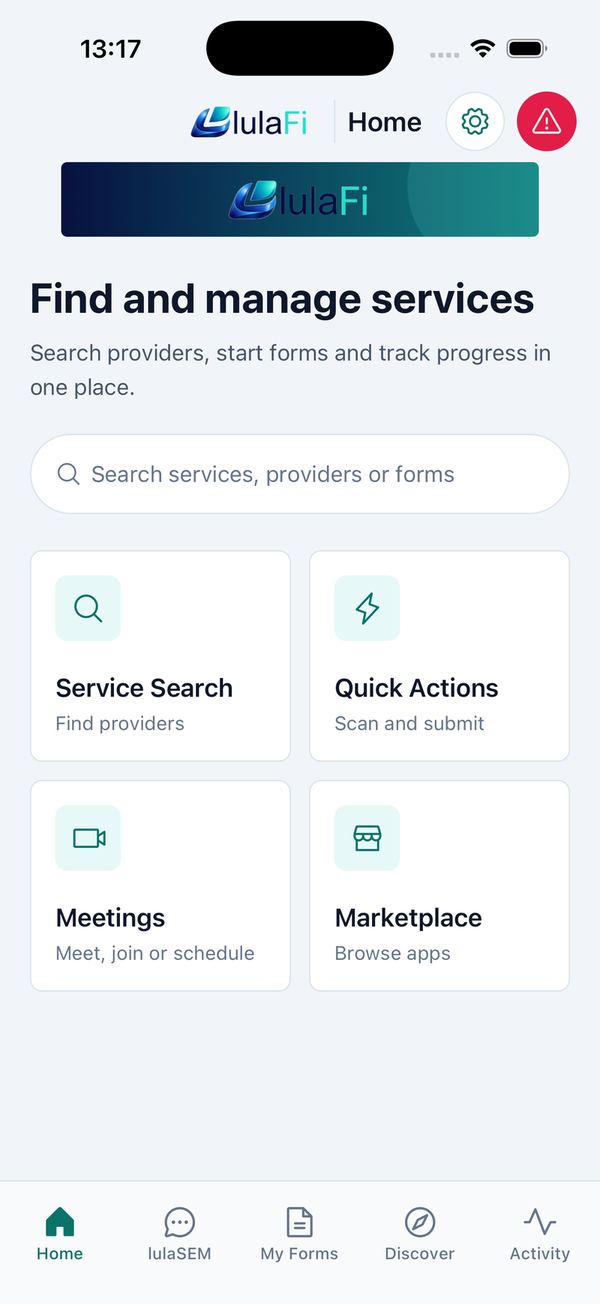
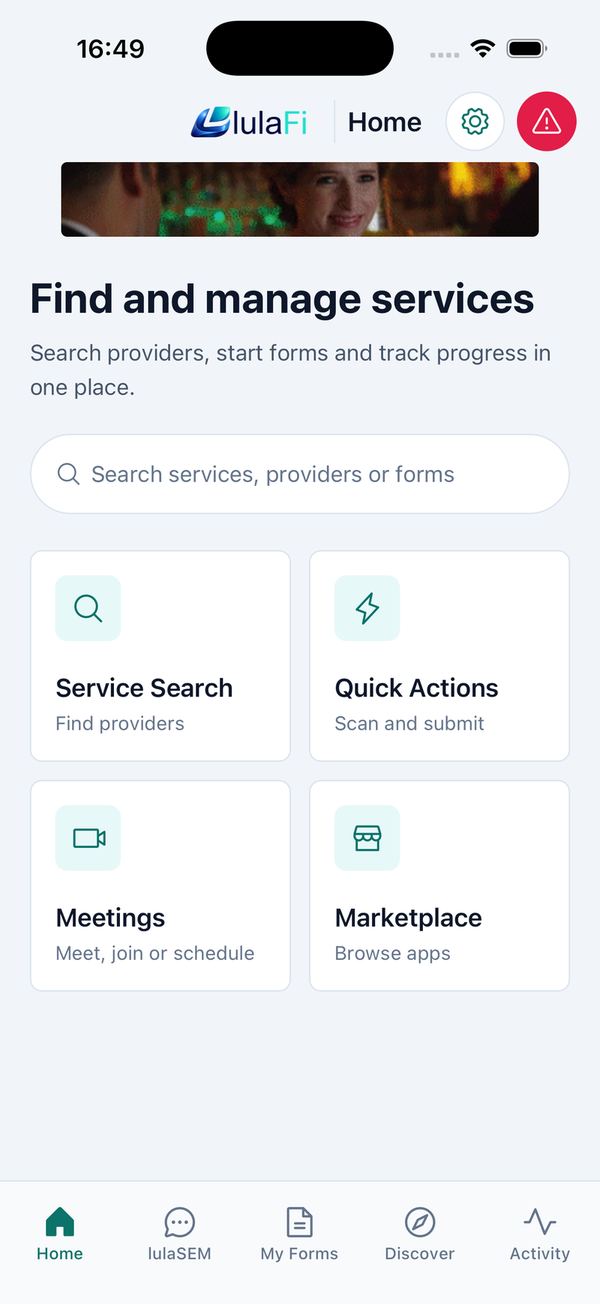
After signing in you land on Home. Top right: the Settings gear and the red emergency button. Below the heading is a search box and shortcut tiles — Service Search, Quick Actions (opens the QR scanner) and Marketplace.
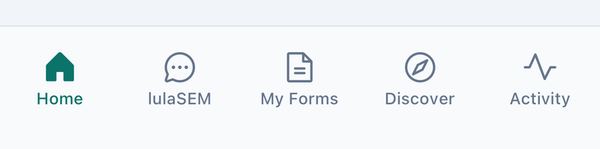
| Tab | What is there |
|---|---|
| Home | Search and shortcut tiles. |
| lulaSEM | All your conversations. A green badge counts unread messages. |
| My Forms | Every form you have submitted, with its status. |
| Discover | Search for providers and their forms. |
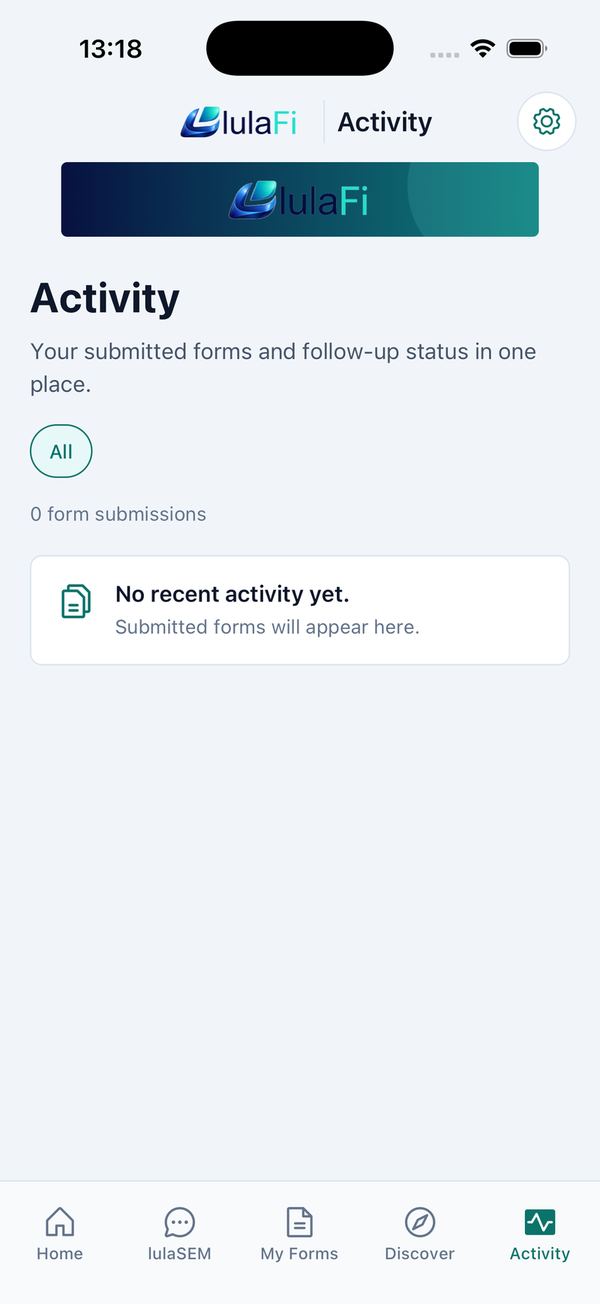
| Activity | A timeline of recent submissions. |
Forms
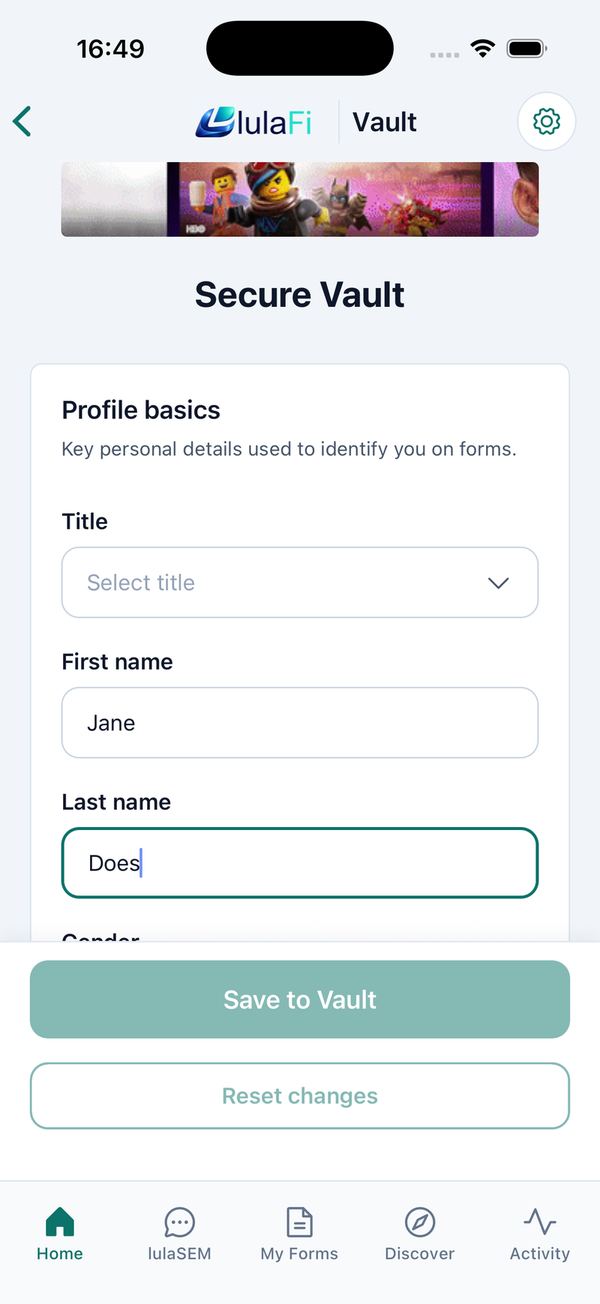
Set up your Data Safe
Store your details once so forms fill themselves in.
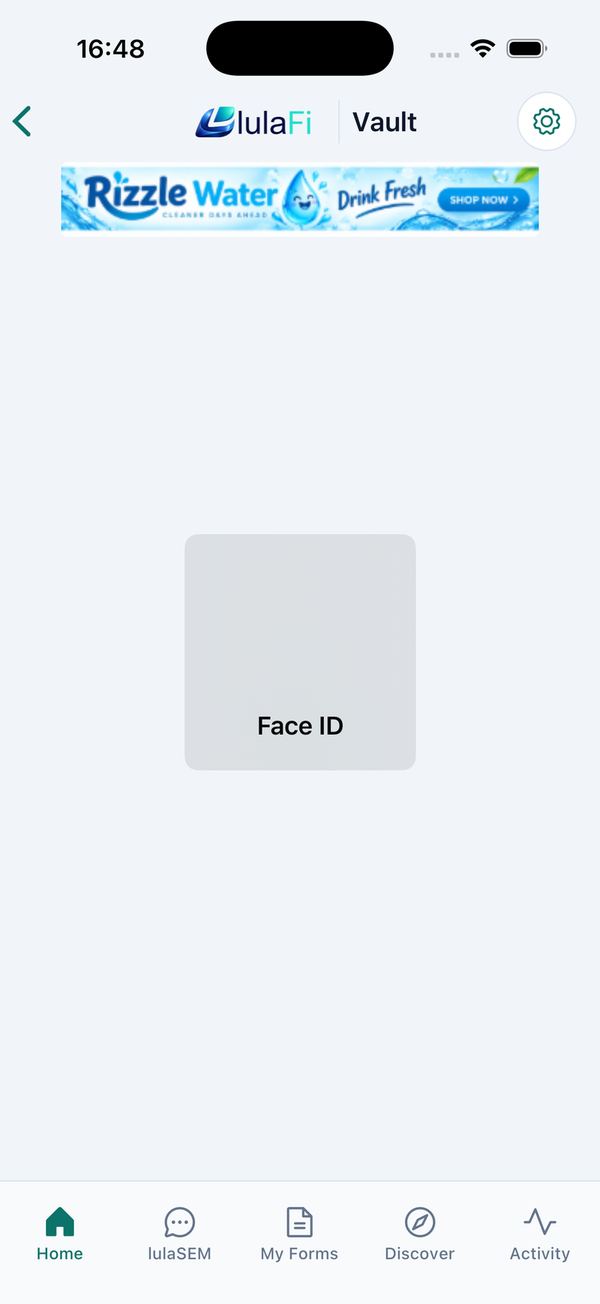
- Unlock with Face ID / fingerprint when prompted (or create a vault PIN if your phone has no biometrics).
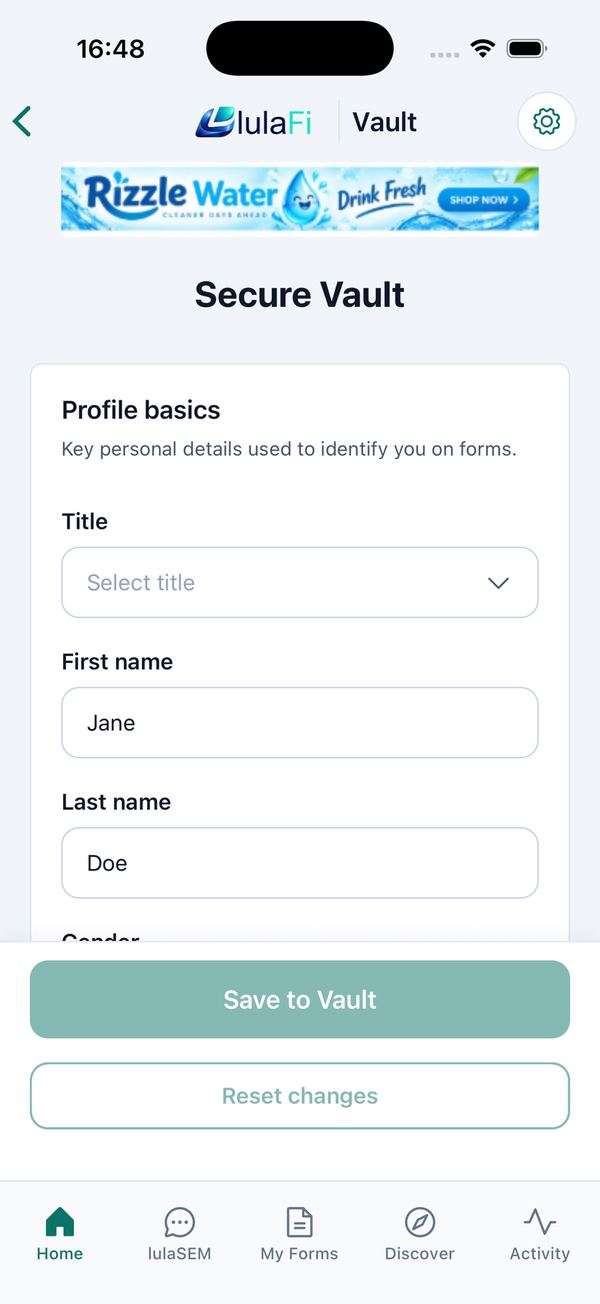
- Fill in what you like under Profile basics, Contact information, Location details and Additional notes. Only fields a form actually asks for are ever used.
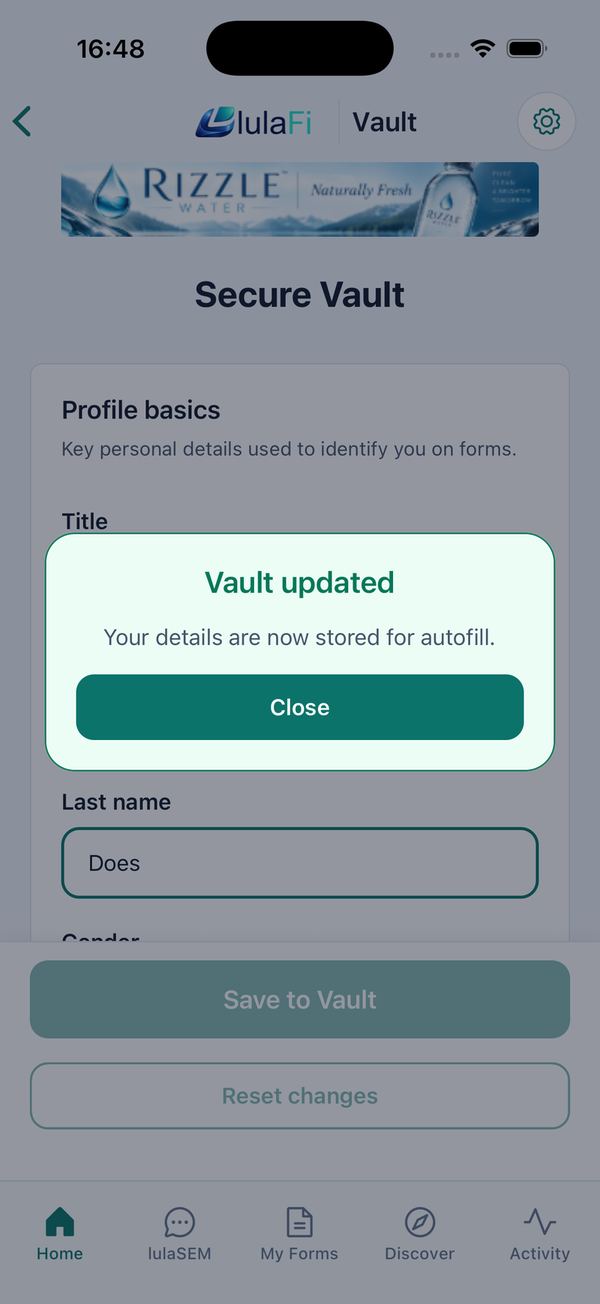
- Tap Save to Vault and unlock again. lulaFi confirms Vault updated.
Find a provider or form
Search in Discover, or scan a QR code.
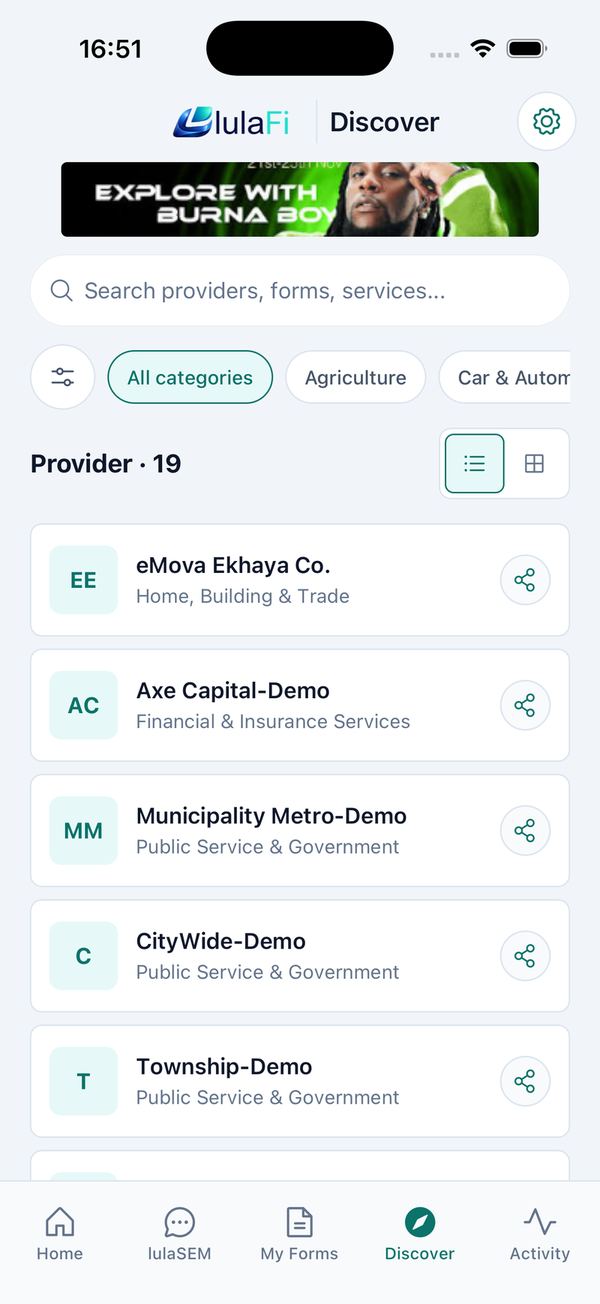
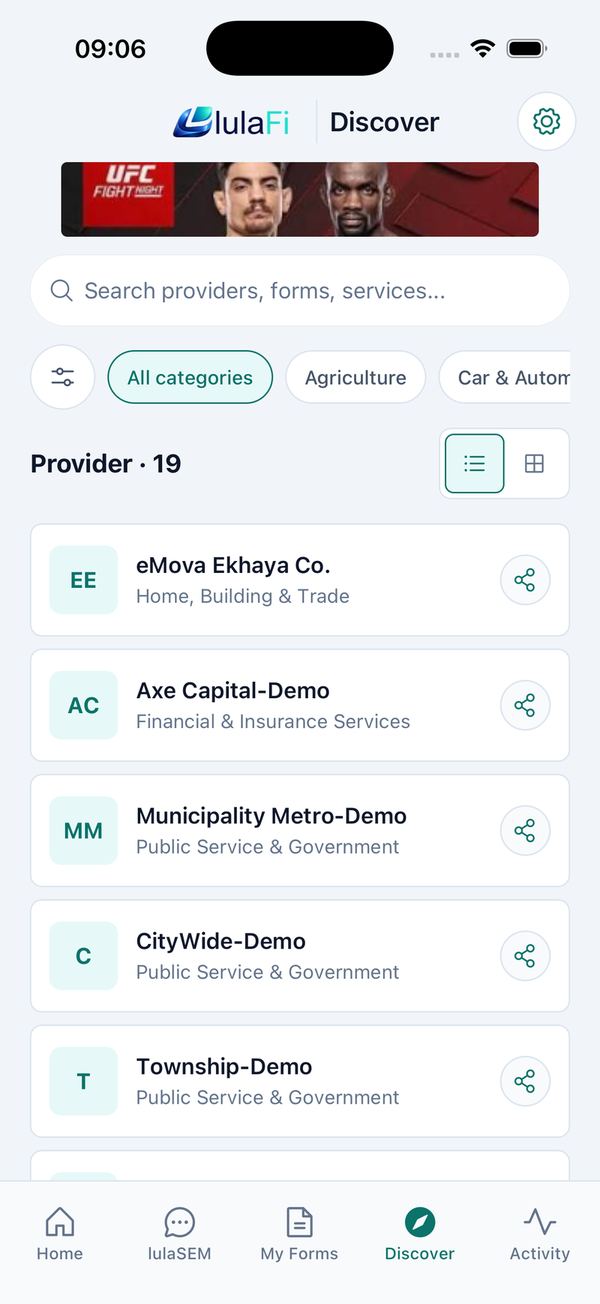
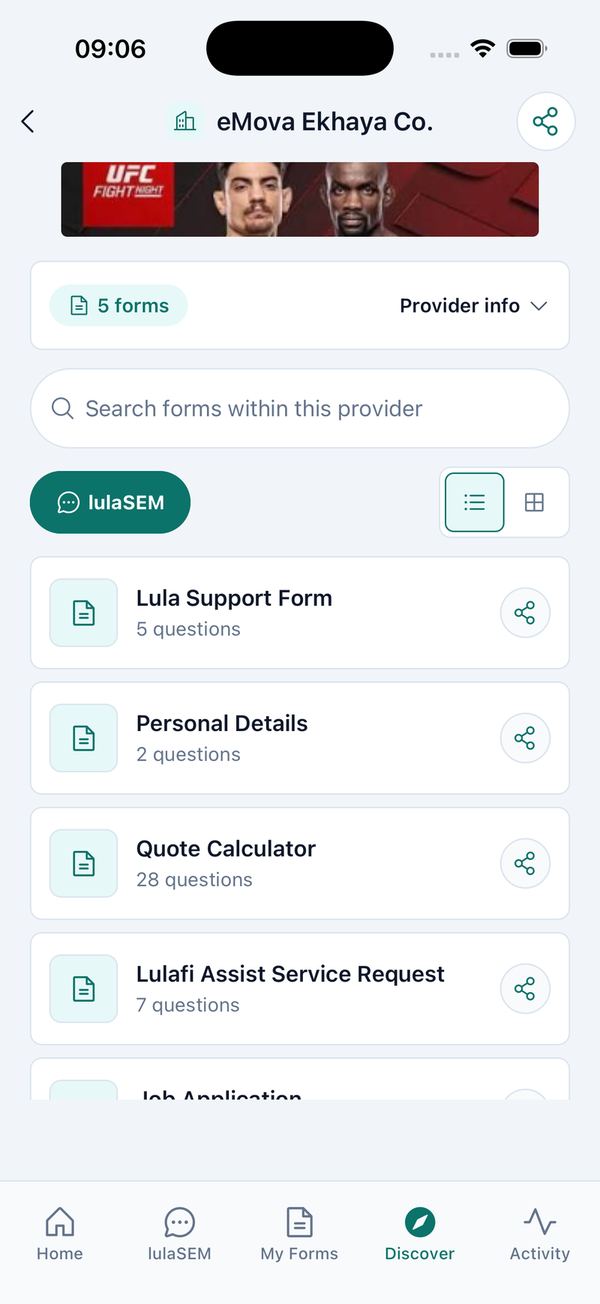
- Tap Discover and type into Search providers, forms, services…, or narrow the list with the category chips.
- Tap a provider. The page shows how many forms it offers; tap Provider info for its address, email, phone and website.
- Tap a form to begin — or lulaSEM to message the provider without submitting anything.
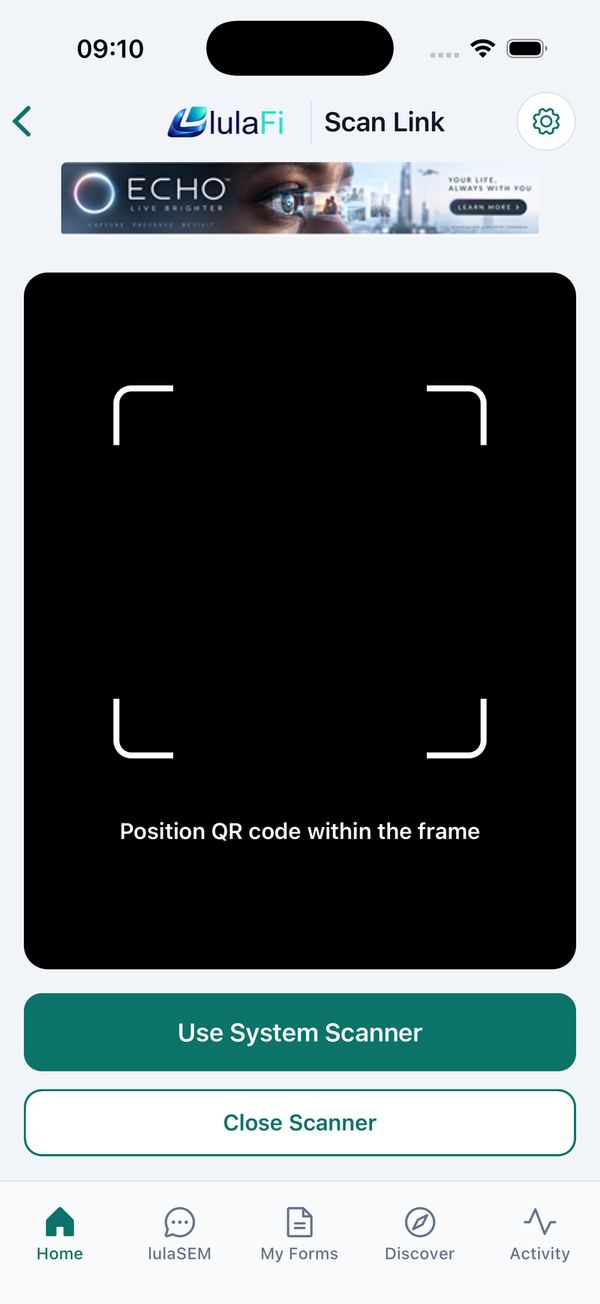
Providers can also give you a QR code. On Home tap Quick Actions, hold the code in the frame and the form opens. Use System Scanner uses your phone's own camera app instead.
Fill in and submit a form
Consent, auto-fill, submit, reference ID.
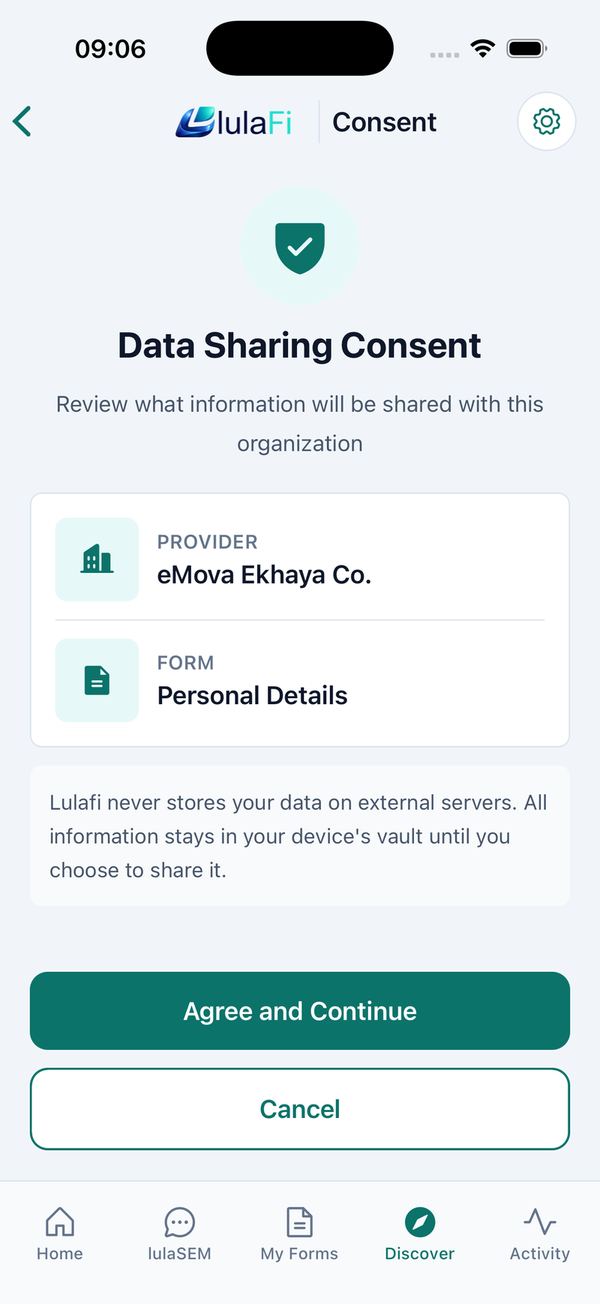
- Read the Data Sharing Consent screen — it names the provider and the form — and tap Agree and Continue.
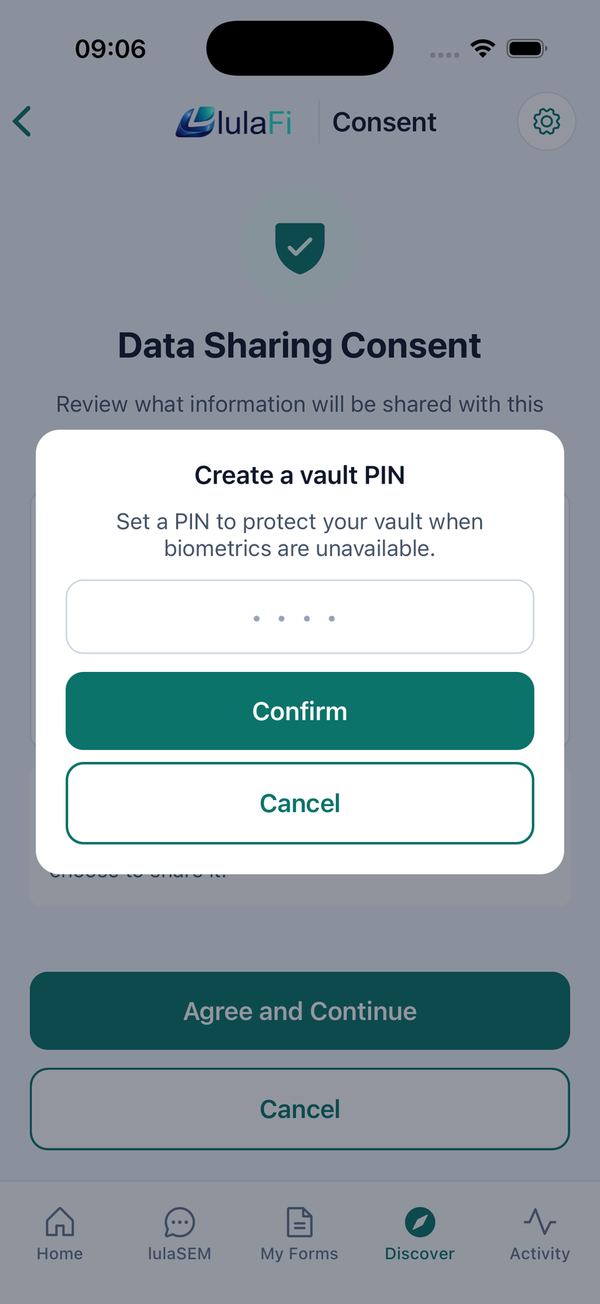
- Unlock your Data Safe with Face ID or your PIN. The very first time, lulaFi also asks you to Create a vault PIN and confirm it; this is your backup if biometrics ever fail.
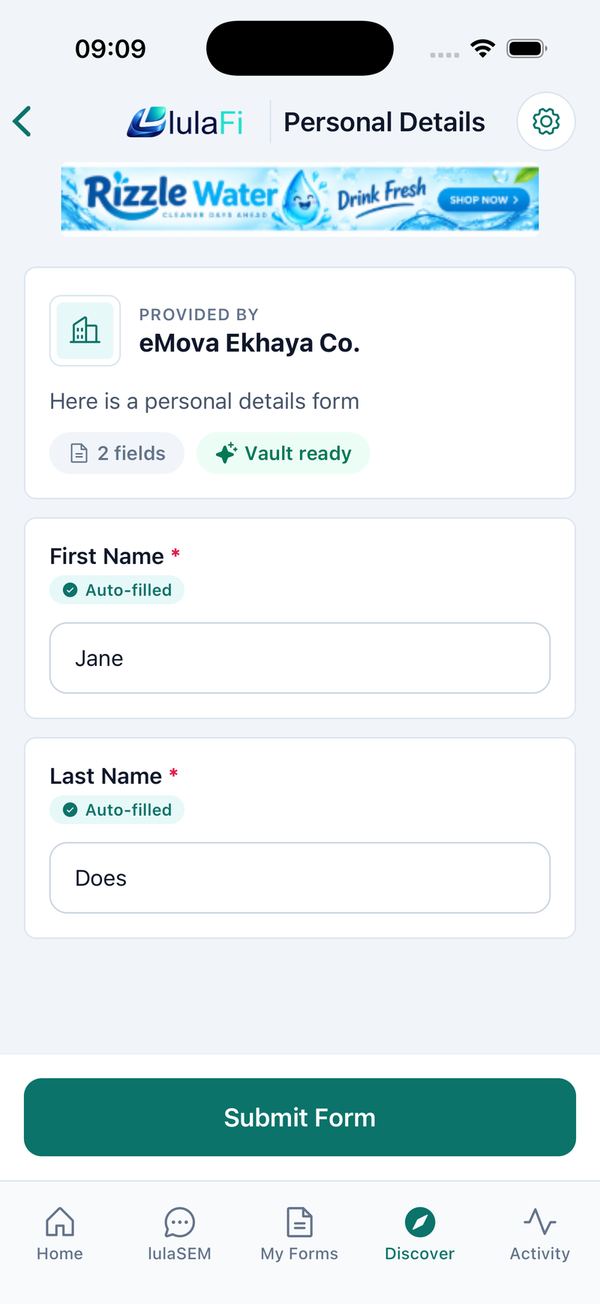
- Check the form. Fields lulaFi filled in for you carry an Auto-filled badge — change anything that is not right. Required fields are marked *. Add files under Attachments if asked, or Save Draft to finish later.
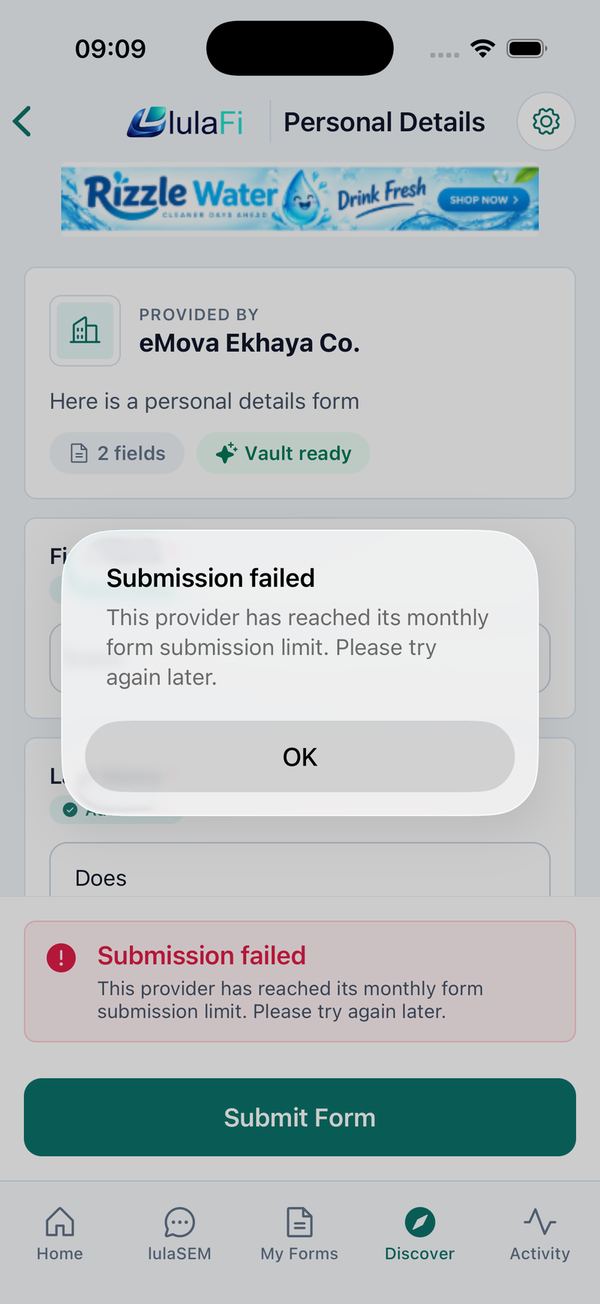
- Tap Submit Form. On success you see Form submitted with your Reference ID, and Send lulaSEM to {provider} opens the conversation created for this submission.
Track and manage submitted forms
My Forms, form details, export and delete.
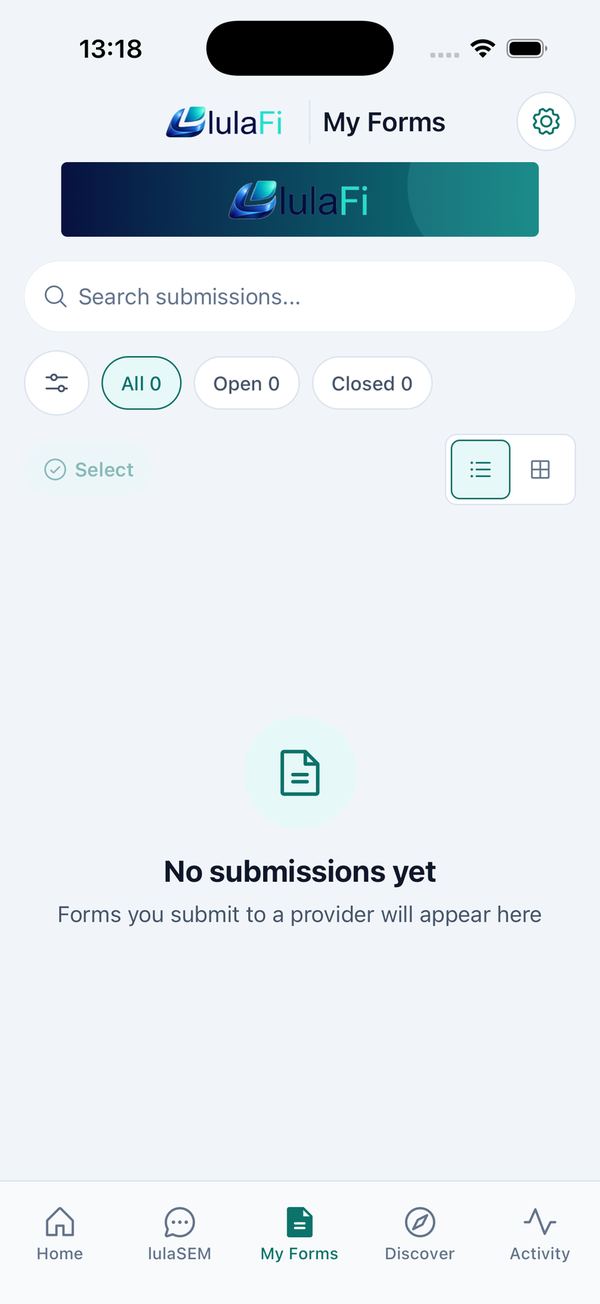
- My Forms lists every submission grouped by provider. Filter with All / Open / Closed, search by title or provider, and tap View details.
- Form details shows the submitted date, reference, provider, attachments and every answer. Use Export (JSON, CSV or Plain Text), Share, Copy or Delete.
- Press and hold a row to select several, then Delete. Deleting also closes the conversation for both sides.
- Forms that could not be sent appear under Failed submissions with Retry and Dismiss.
- Activity is a simple timeline — Submitted a form to {provider} — tap an entry to open it.
Messaging
Message with lulaSEM
Start a chat, send messages, attachments and voice notes.
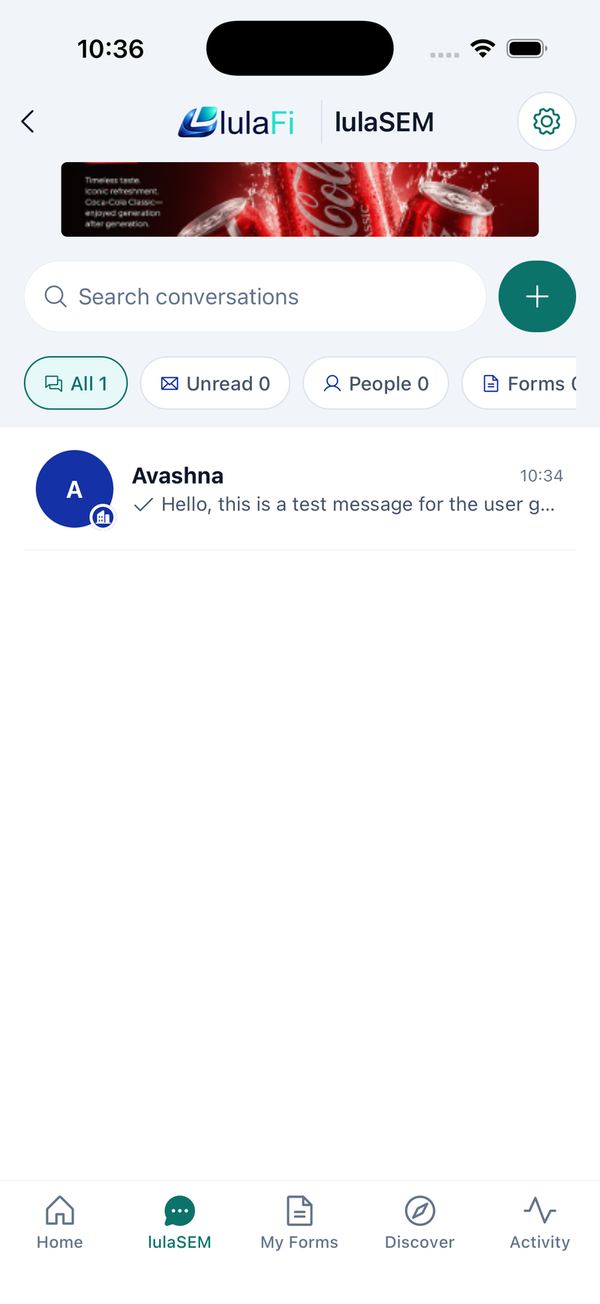
Every message and attachment is end-to-end encrypted — only the people in the conversation can read it. The list filters with All, Unread, People, Forms and Groups; the ticks show whether a message is sent (one), delivered (two) or read (two coloured).
Start a conversation
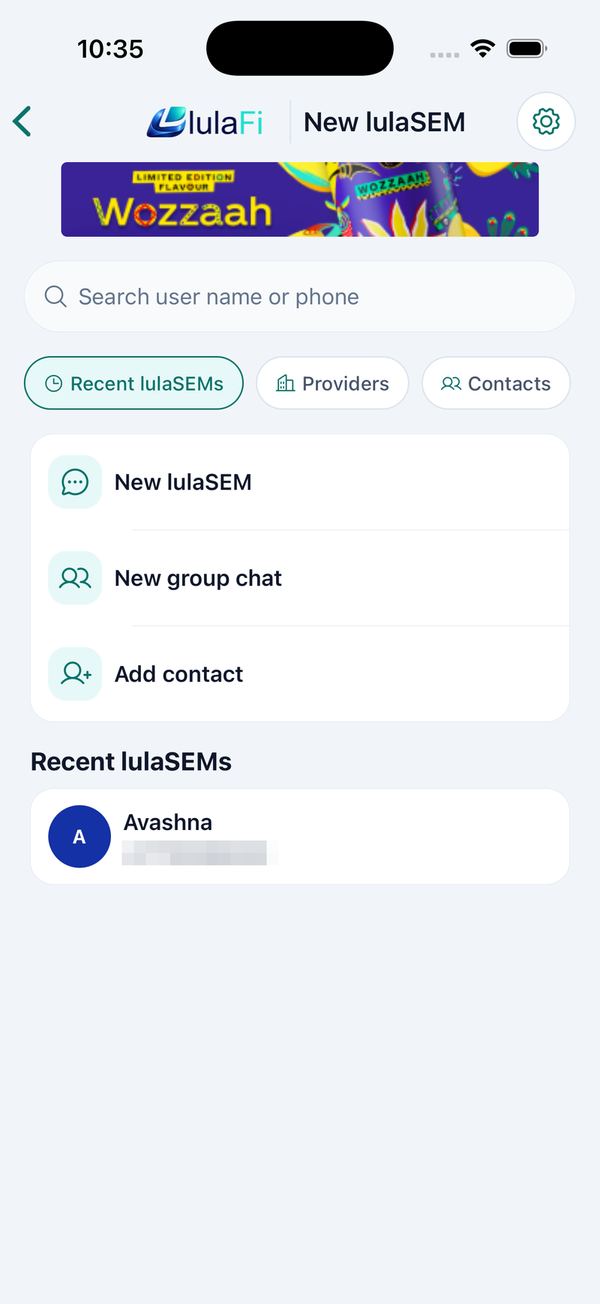
- Tap + on the lulaSEM list and choose New lulaSEM (or pick someone under Recent lulaSEMs, Providers or Contacts).
- Enter the person's phone number in the Send lulaSEM by phone number sheet and tap Start lulaSEM. They must already use lulaFi.
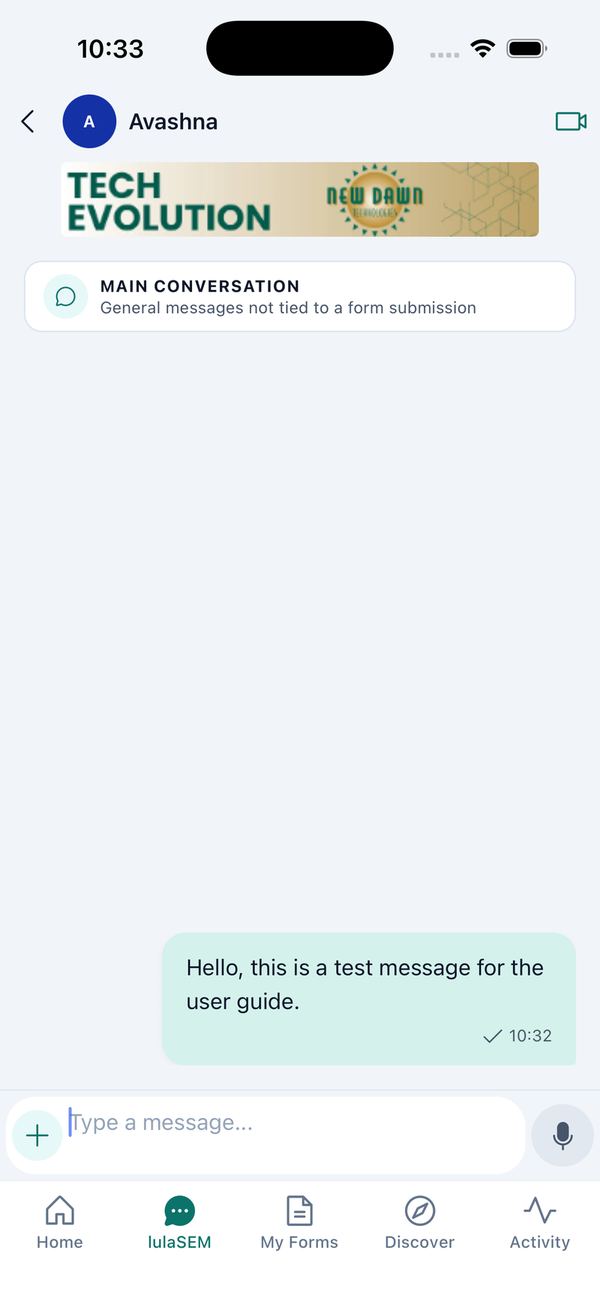
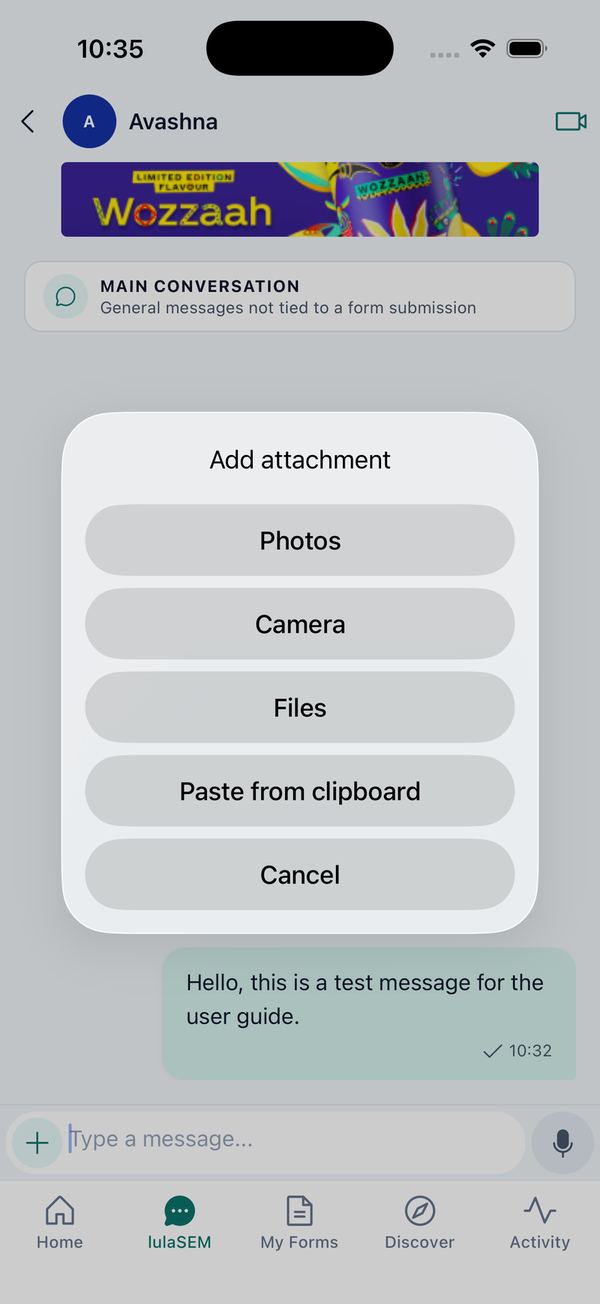
- Type in Type a message… and tap send. The + button adds Photos, Camera, Files or Paste from clipboard; hold the microphone to record a voice message.
Message options
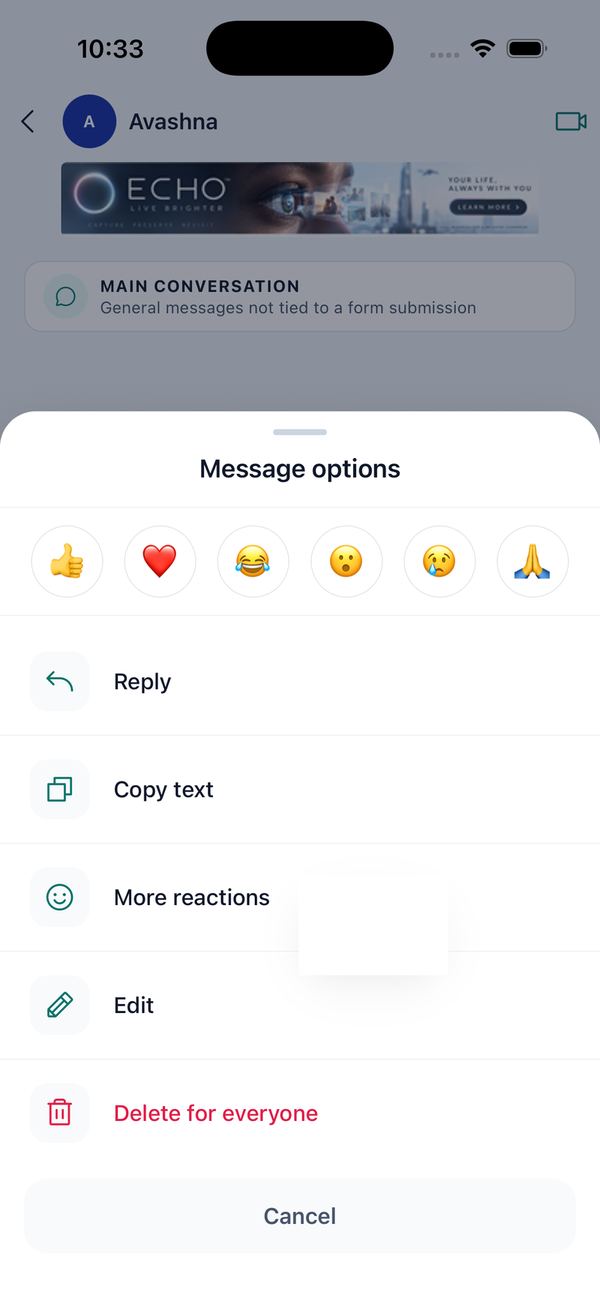
Press and hold a message to react with an emoji, Reply, Copy text, Edit your own message, or Delete for everyone. Swipe a message sideways to reply quickly.
Form conversations and groups
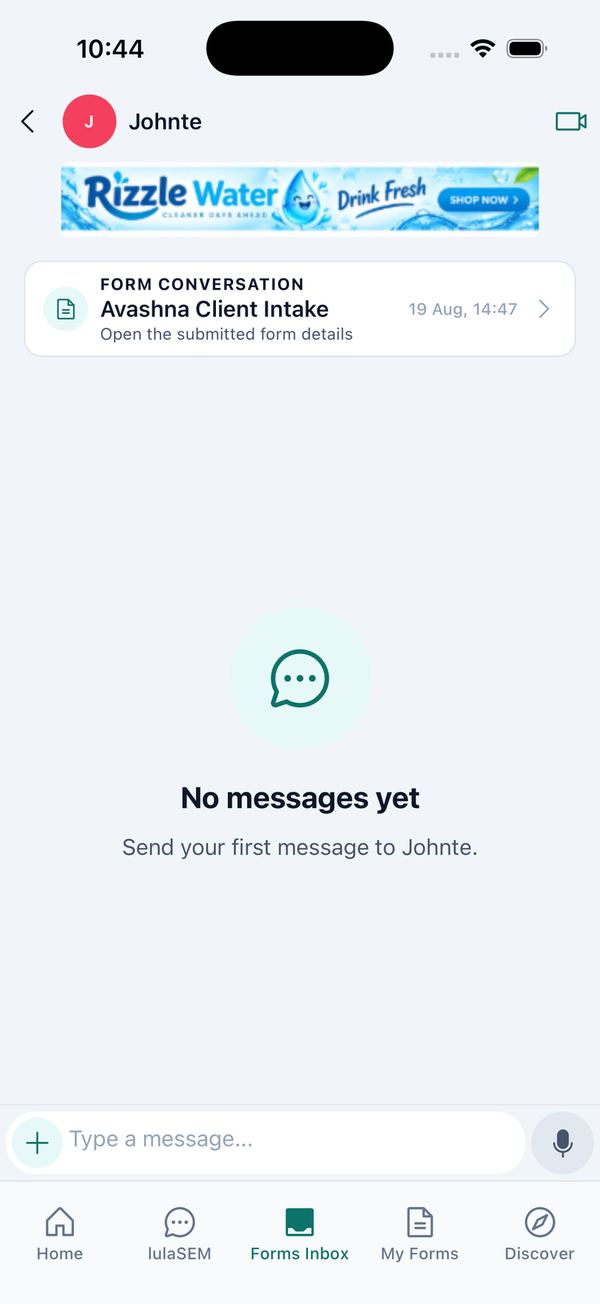
- Each form you submit gets its own conversation with a pinned card at the top; general chat with the same contact lives in the Main conversation. A form conversation stays Open until the submission is deleted by either side.
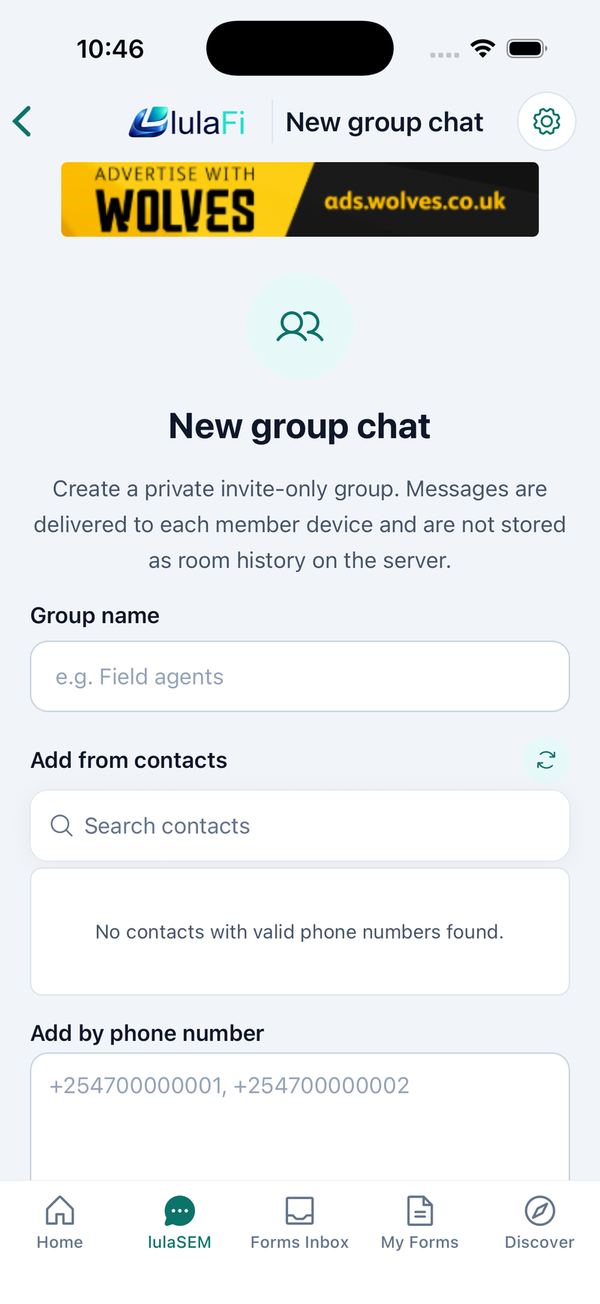
- Tap + → New group chat to create a private group: name it, add people from contacts or by phone number. Tap the group name to see Admins and Members.
- Press and hold a contact on the New lulaSEM screen to Block user or Unblock user.
- Offline? Messages wait as Queued and send themselves when you reconnect.
Accept a provider invitation
Join an organisation's group to unlock its forms.
A provider can invite you to its group — a school inviting parents, an employer inviting staff. A banner appears at the top of the app when one is waiting. Open it, read Invited by {name}, then Accept or Decline. You can belong to one provider group at a time; the Invitation reminders toggle controls the banner.
Safety & devices
Send an Emergency SOS
Double-tap the red button.
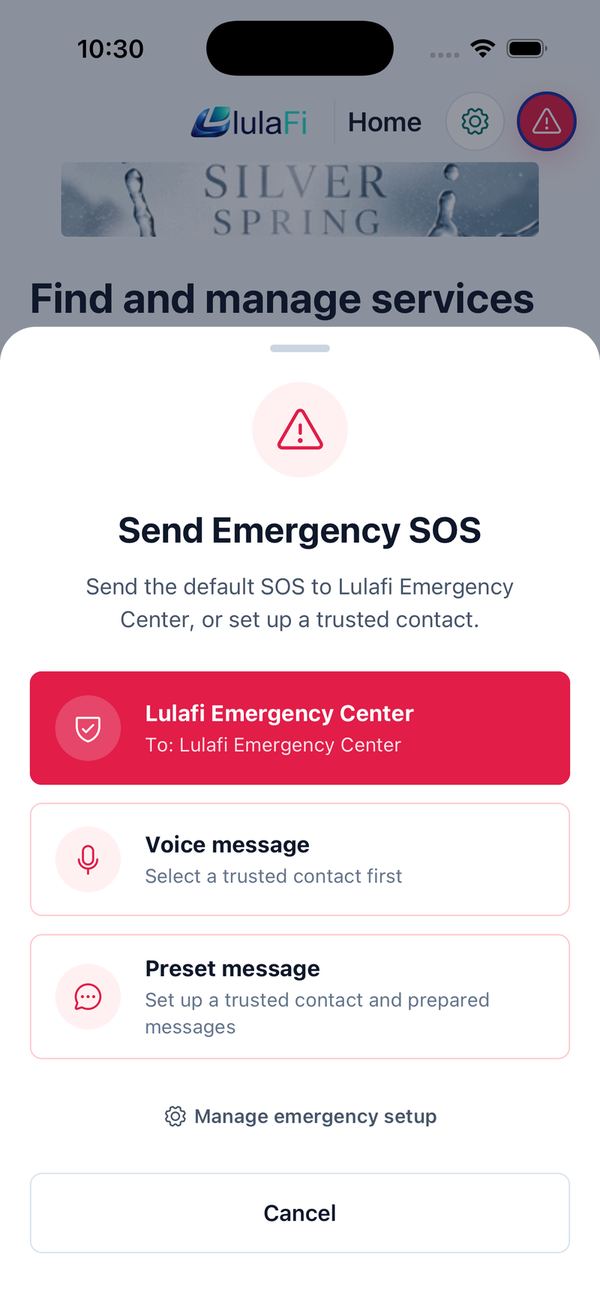
- On Home, double-tap the red emergency button quickly.
- Choose lulaFi Emergency Center to send the default SOS straight away, or — once you have set up a trusted contact — Voice message or Preset message.
- Confirm Send SOS. You see SOS sent; the recipient gets a message marked EMERGENCY · SOS with a map link to your location.
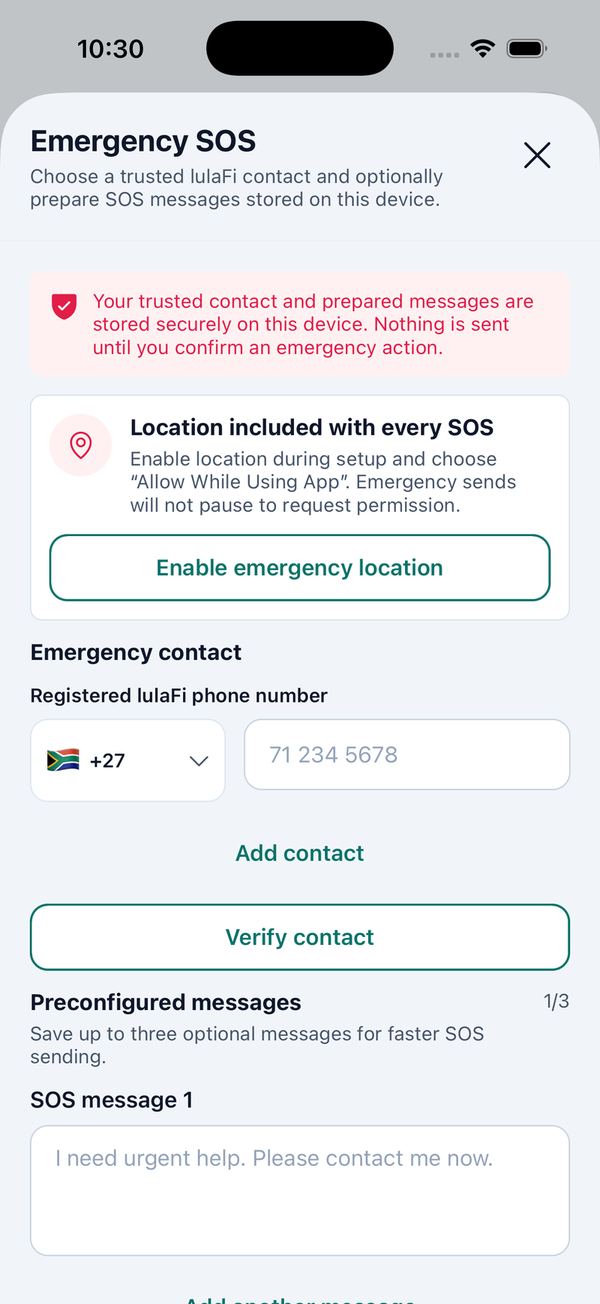
To set up a trusted contact: open Manage emergency setup, enter their Registered lulaFi phone number and tap Verify contact, tap Enable emergency location, optionally write up to three preset messages, then Save emergency settings.
Linked devices and chat backup
Use lulaSEM on more than one phone.
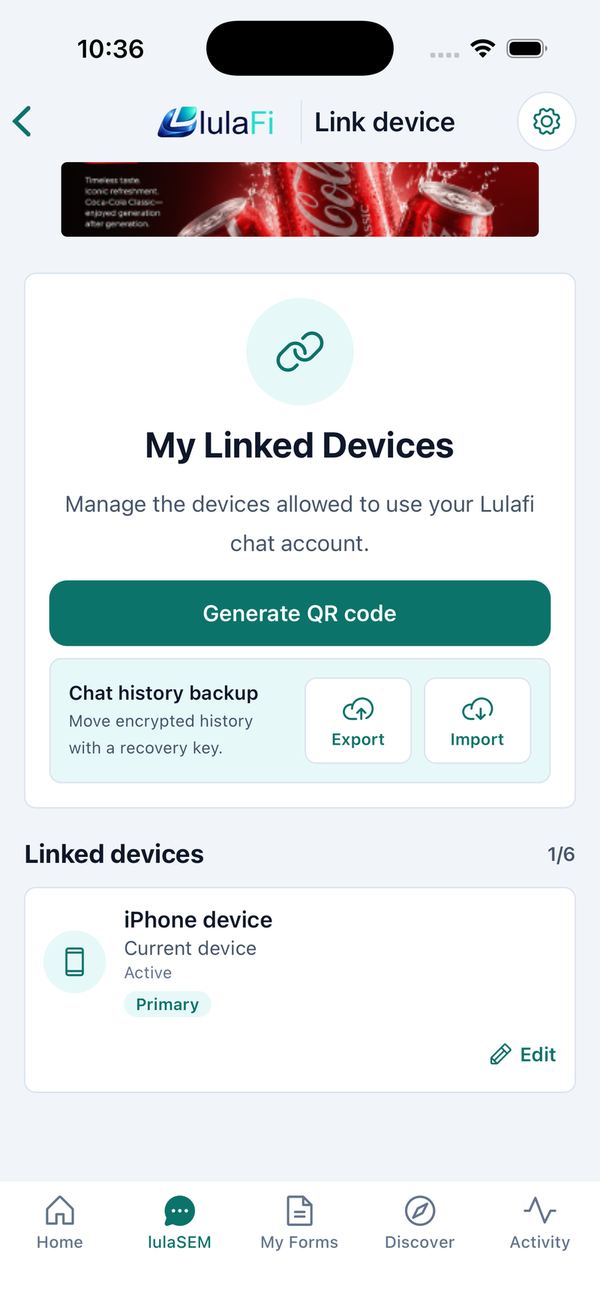
- The list shows your devices and how many of your allowance are used (1/6). The one marked Primary controls linking and unlinking.
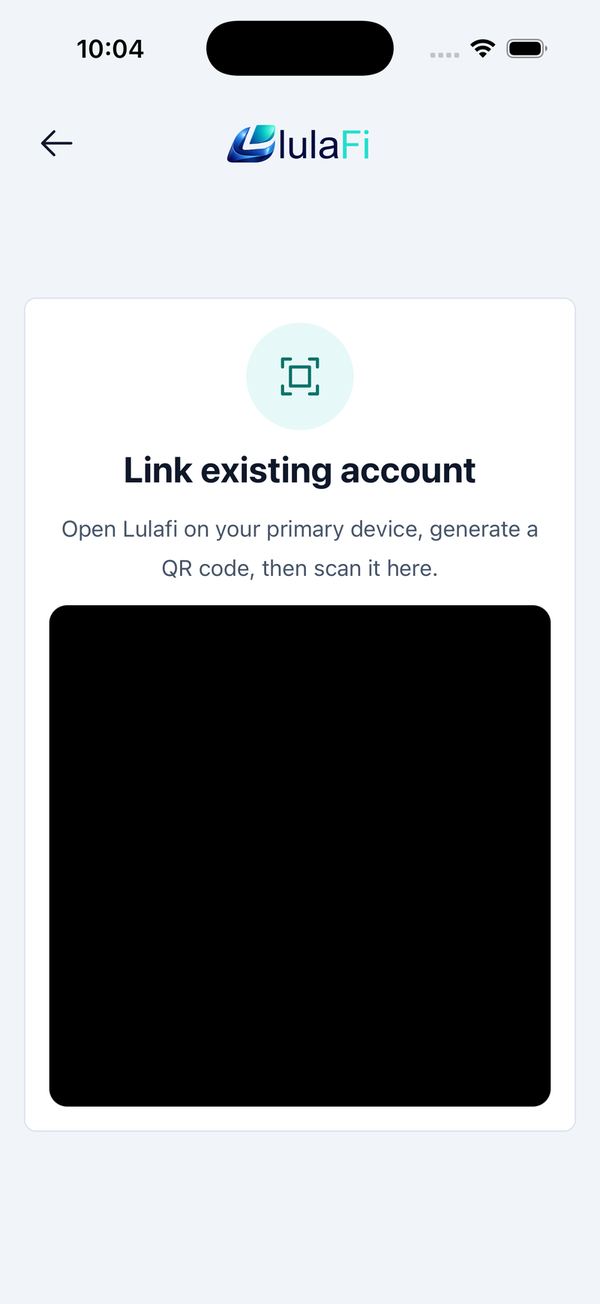
- Generate QR code lets a new phone join by scanning it from Link existing account on its welcome screen.
- A new device asks the primary one for your history automatically — tap Approve sync on the primary phone.
- Chat history backup → Export creates an encrypted file plus a recovery key; Import restores it on another device. Keep the key safe — the backup is useless without it.
Connect apps in the Marketplace
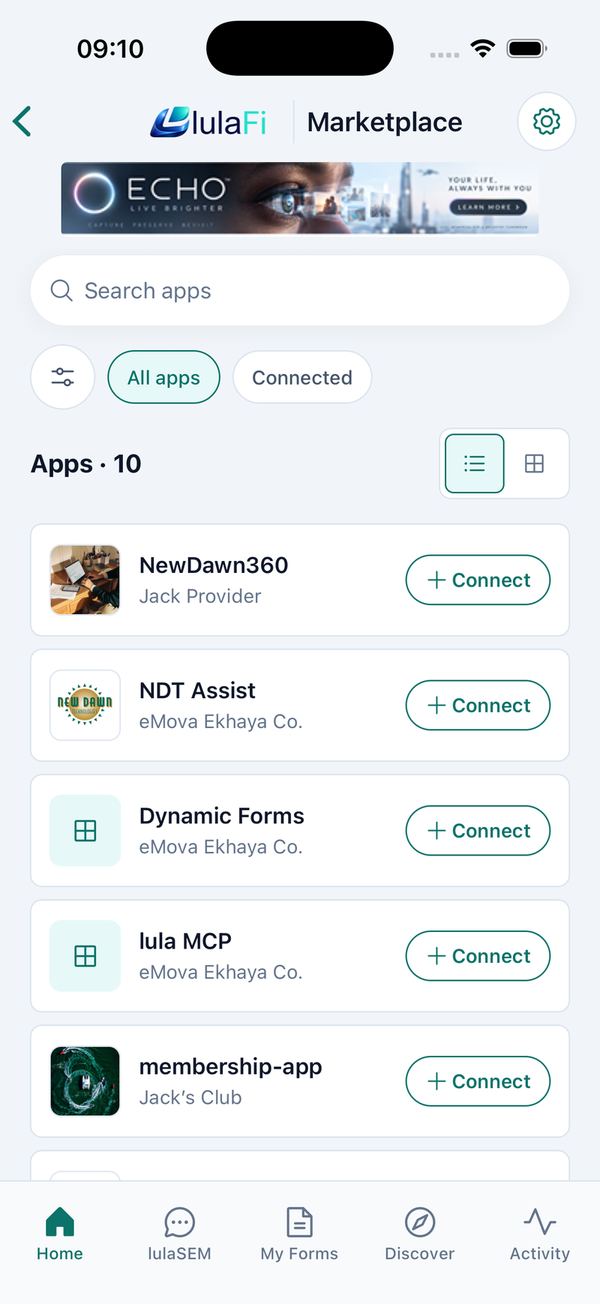
Other apps that work with your lulaFi account.
Search or browse All apps, tap Connect, then Continue to approve the connection in your browser. Connected apps appear under Connected; Disconnect withdraws the access at any time.
Account
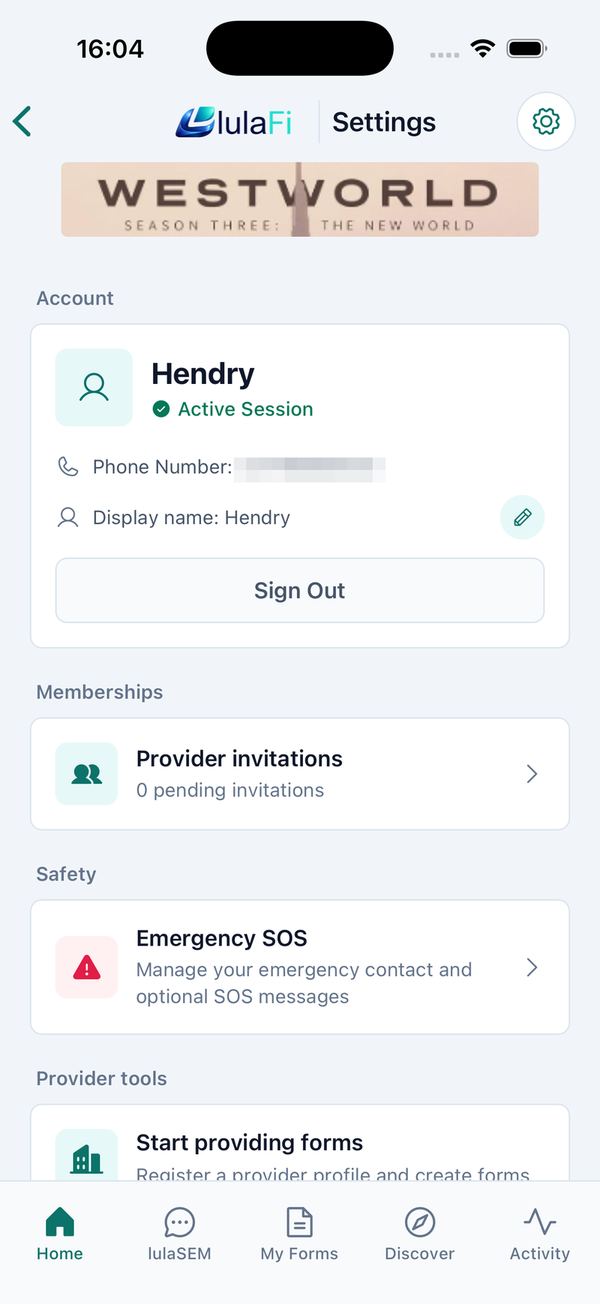
Settings at a glance
Everything behind the gear button.
| Section | What you can do |
|---|---|
| Account | See your number, Edit display name, Sign Out. |
| Memberships | Provider invitations (pending count). |
| Safety | Emergency SOS setup. |
| Provider tools | Start providing forms — apply to become a provider. |
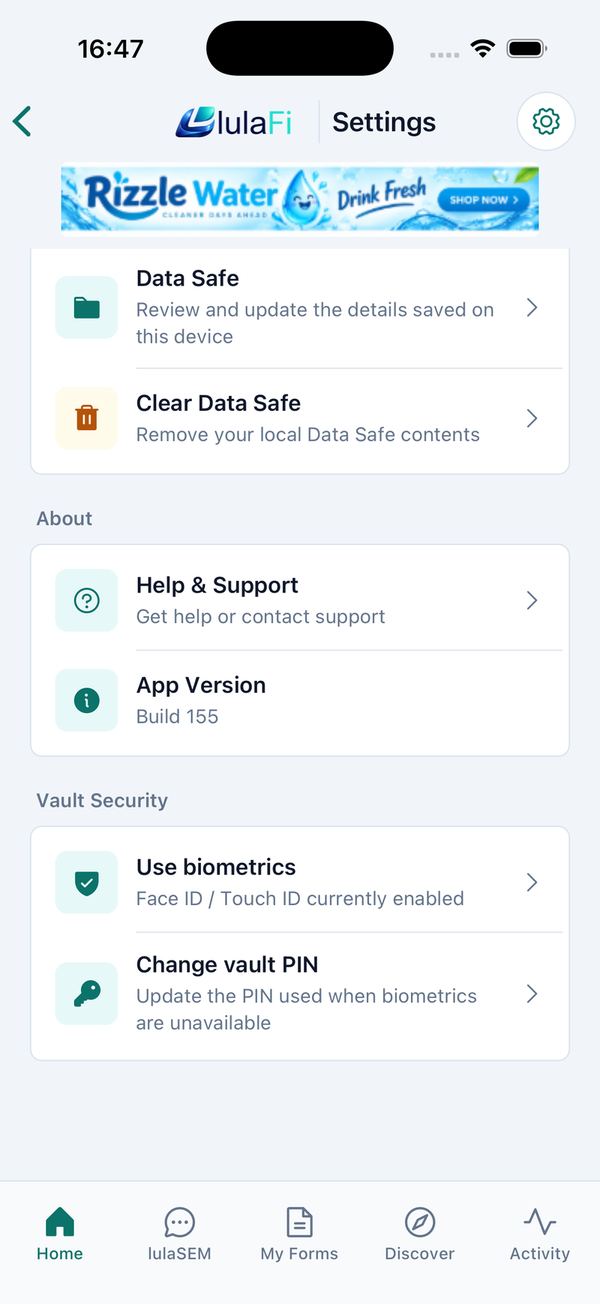
| Device | My Linked Devices, backups and sync. |
| Preferences | Appearance (System / Light / Dark) and Language & Preferences. |
| Data & Storage | Data Safe and Clear Data Safe. |
| About | Help & Support (support@lulafi.com) and App Version — quote it when reporting a problem. |
| Vault Security | Use biometrics / Use vault PIN, Change vault PIN. |
Become a service provider
Publish your own forms.
- Complete Provider information — provider name, category, registration number, address, website, your name, contact email and phone — and accept the terms.
- Tap Continue to email verification, enter the 6-digit code emailed to you and tap Submit provider request.
- Watch the Provider tools card: under review → approved. Sign out and back in to switch to the provider view.
Troubleshooting
Quick fixes for common problems.
| Problem | What to do |
|---|---|
| No OTP arrived | Check the number, wait for the countdown, tap Resend. Tap the number to Edit Phone Number. |
| App asks for an update | Update lulaFi from the App Store or Google Play — older versions are blocked. |
| Forgot my vault PIN | Settings → Data & Storage → Clear Data Safe, then enter your details again. |
| Form will not submit | Check your connection and retry; see Failed submissions. A monthly limit message means the provider must upgrade its plan. |
| Message shows Failed | Tap it to retry. Offline messages show Queued and send later. |
| Cannot message in a form conversation | It is Closed because the submission was deleted. Submit the form again. |
| Cannot link a new device | Start from the Primary device, and unlink an old device if you are at the limit. |
| Emergency button does nothing | It needs a quick double tap. |
| Still stuck | Email support@lulafi.com with your App Version from Settings → About. |
lulaFi for service providers
Receive form submissions from your clients and respond through secure chat. This guide covers everything a provider does in the mobile app — with real screens.
Start here
Quick start
The five things providers do most in lulaFi.
lulaFi for providers
Receive submissions, respond securely.
Clients find your organisation in lulaFi, fill in your forms and chat with you. As a service provider you receive those submissions in the Forms Inbox, review the answers and respond through end-to-end encrypted lulaSEM chat — every submission gets its own conversation, so questions stay attached to the form.
| Term | Meaning |
|---|---|
| Forms Inbox | Every form submitted to your organisation. |
| lulaSEM | lulaFi's secure chat. One conversation is "a lulaSEM". |
| Form conversation | The chat created automatically for one submission. |
| Provider group | The people who belong to your organisation in lulaFi. |
| OTP | The 6-digit one-time PIN sent to your phone when you sign in. |
Getting started
Sign in as a provider
Same phone-number sign-in; provider screens appear automatically.
- Open lulaFi, tap Skip on the welcome tour, pick your country, type your mobile number and tap Send OTP.
- Enter the 6-digit code from the SMS. First time? Type the display name clients will see and tap Continue.
- Once your organisation's provider application has been approved, lulaFi shows the provider screens automatically. Approved but still seeing the client view? Settings → Sign Out and sign in again.
Find your way around
The Home screen and the five provider tabs.
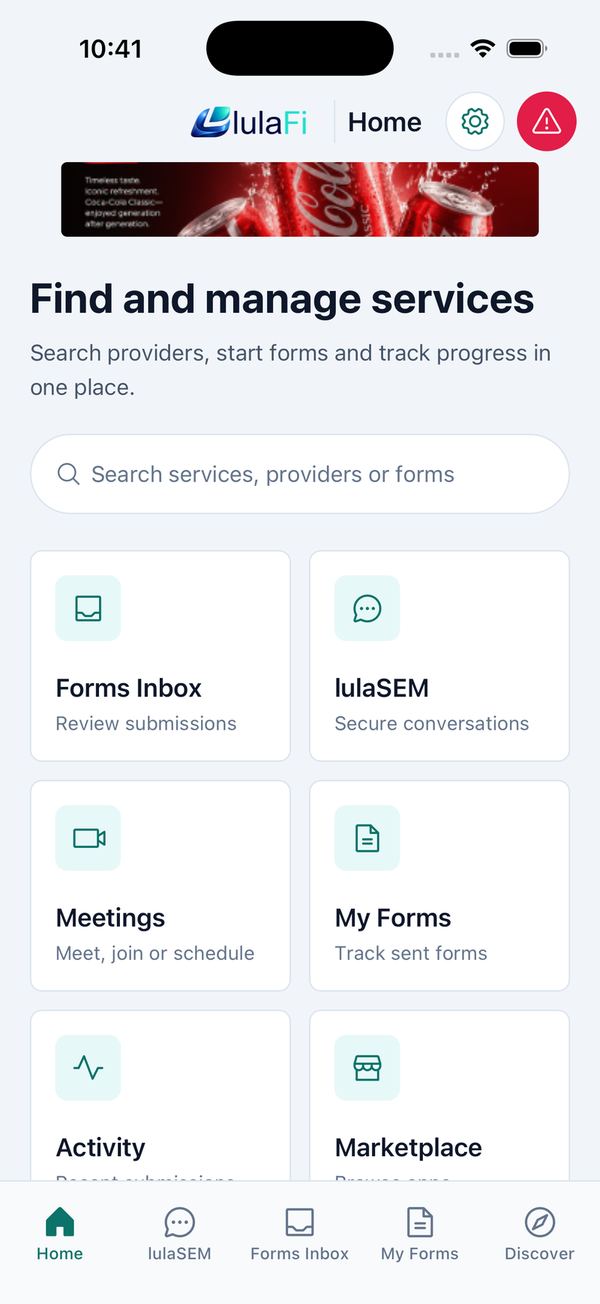
Top right of Home: the Settings gear and the red emergency button. The shortcut tiles are Forms Inbox, lulaSEM, My Forms, Activity and Marketplace.
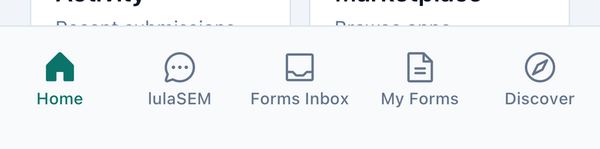
| Tab | What is there |
|---|---|
| Home | Search and shortcut tiles. |
| lulaSEM | All conversations with clients. A green badge counts unread messages. |
| Forms Inbox | Forms clients have submitted to your organisation. |
| My Forms | Forms you have submitted to other providers. |
| Discover | Search for other providers and their forms. |
To change language or appearance: Settings → Preferences. Eleven South African languages are available.
Submissions
Review submissions in the Forms Inbox
Your main screen: everything clients send you.
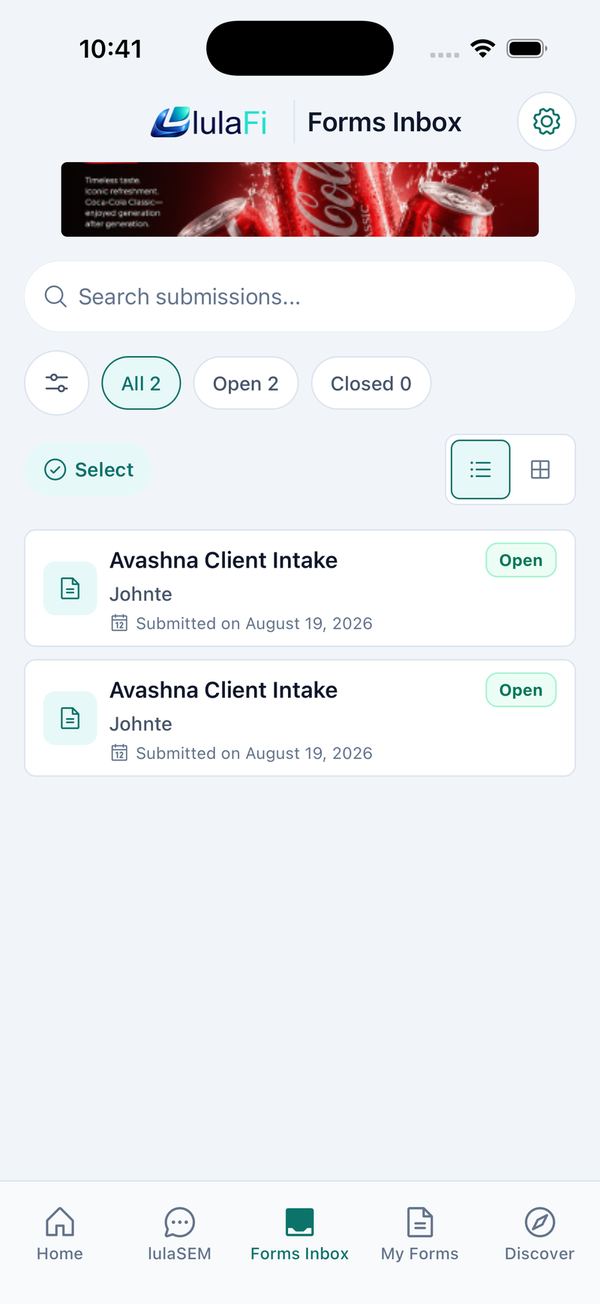
- Each card shows the form title, the client's name, Submitted on … and an Open / Closed badge for its conversation. New submissions appear at the top; pull down to refresh.
- Filter with All / Open / Closed (each shows a count) or the filter button; search with Search submissions…; switch between list and grid with the buttons on the right.
- You get a push notification for every new submission — tapping it opens that submission's conversation.
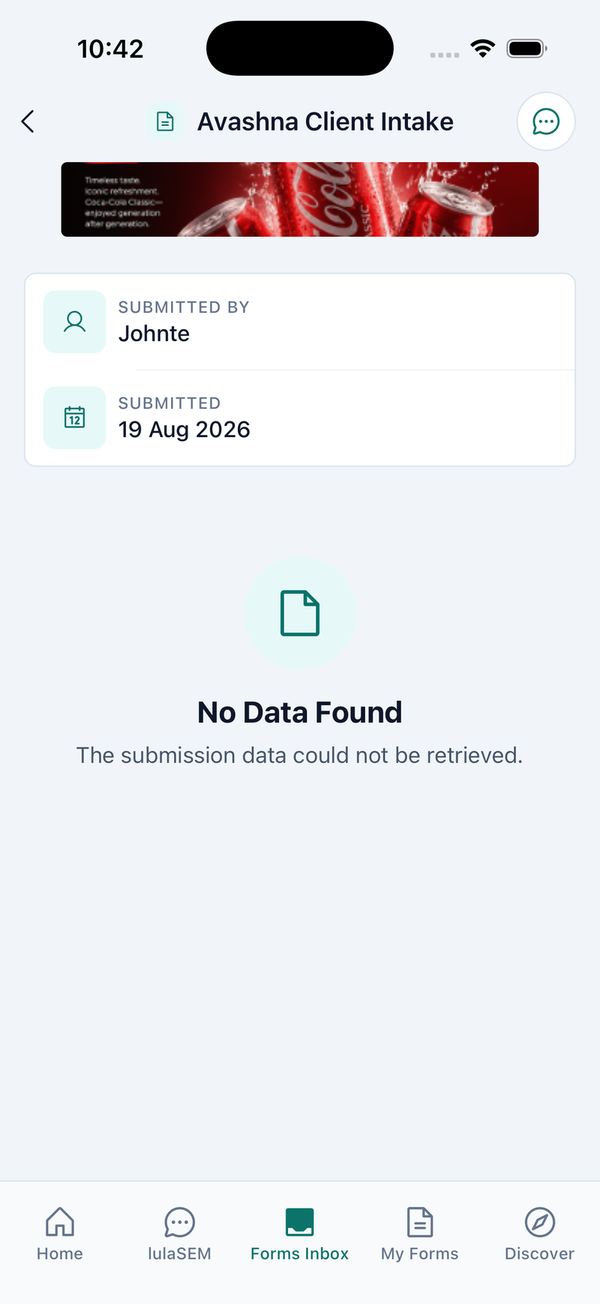
- Tap a card to open Form details. The cards show who it was Submitted by and when it was Submitted; the answers follow, field by field, with photo attachments you can tap to view.
- Use the chat button at the top right to open the conversation for this submission.
- Use Export (JSON, CSV or Plain Text), Share or Copy to move the data elsewhere.
Deleting submissions
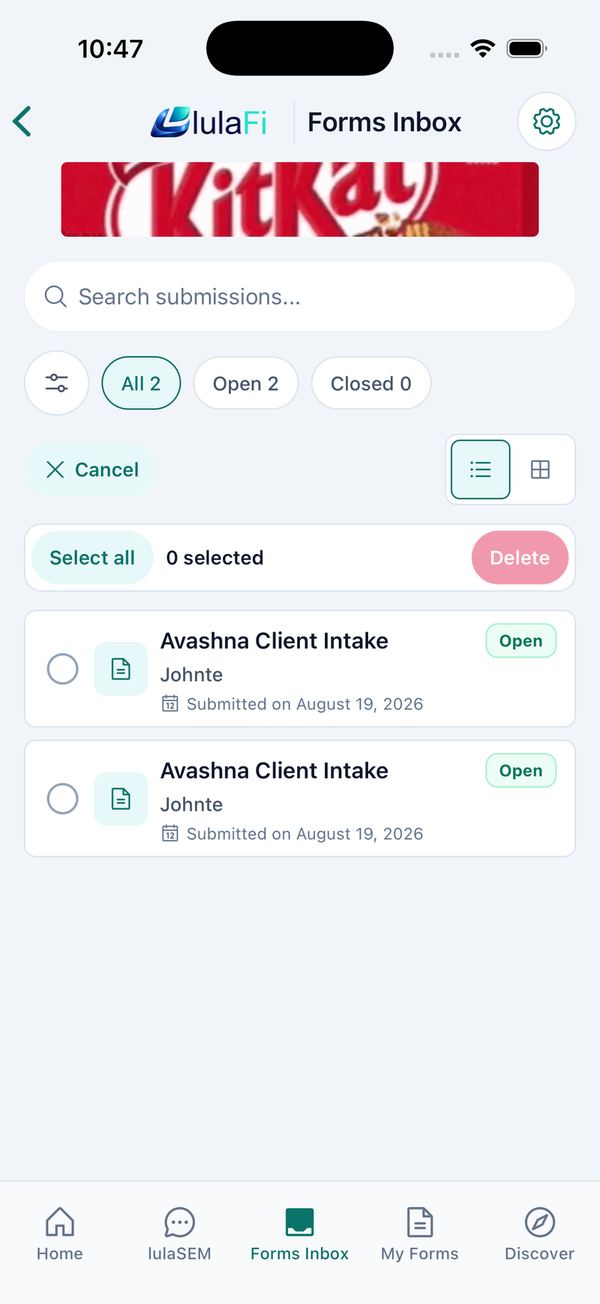
Tap Select (or press and hold a card), tick the submissions or Select all, then Delete. Cancel leaves selection mode.
Submit forms to other providers
Providers can be clients of other organisations too.
- Tap Discover, search or filter by category, and open a provider. Tap Provider info for its contact details, lulaSEM to message it, or a form to begin.
- Read the Data Sharing Consent screen and tap Agree and Continue. The first time, lulaFi asks you to Create a vault PIN (or use Face ID / fingerprint) to protect the details it keeps for filling in forms.
- Complete the form — required fields are marked — and tap Submit Form. On success you see Form submitted* with a Reference ID.
The My Forms tab tracks what you have sent, with All / Open / Closed filters and View details; forms that could not be sent sit under Failed submissions with a Retry button. The Activity tile on Home shows the same submissions as a timeline.
Messaging
Respond to clients with lulaSEM
Form conversations, direct messages, attachments.
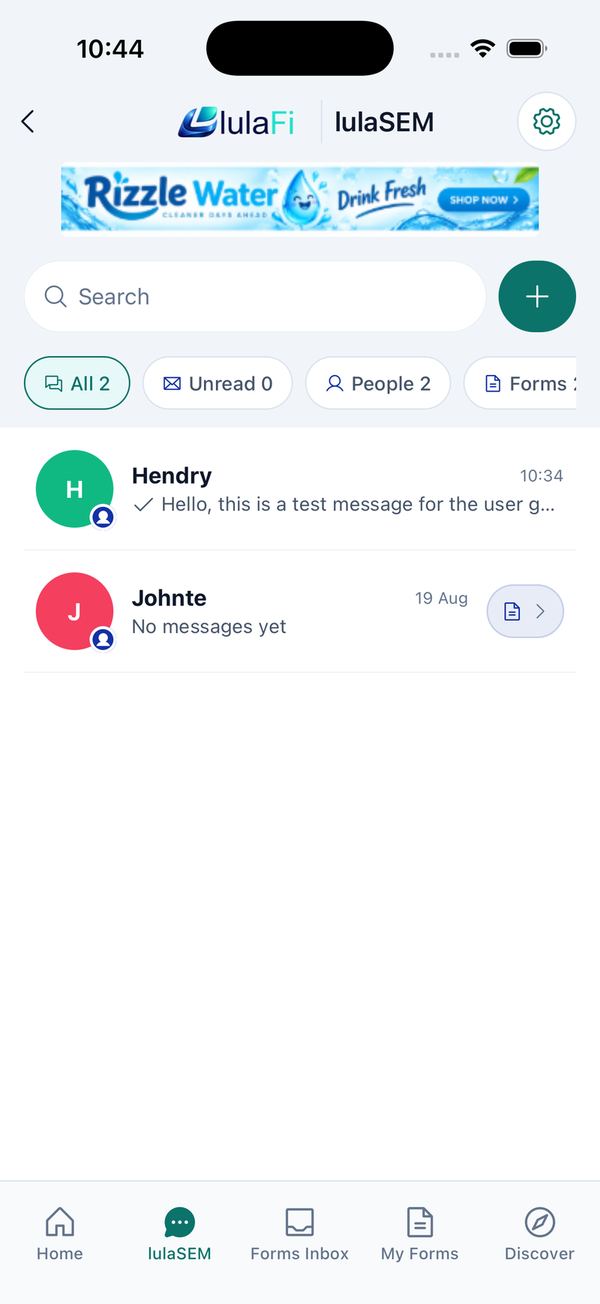
Every message and attachment is end-to-end encrypted. Filter the list with All, Unread, People, Forms and Groups. A small badge on each avatar shows whether the contact is a person or an organisation; rows tied to a form show a document button that opens the submission. Ticks show sent (one), delivered (two) or read (two coloured).
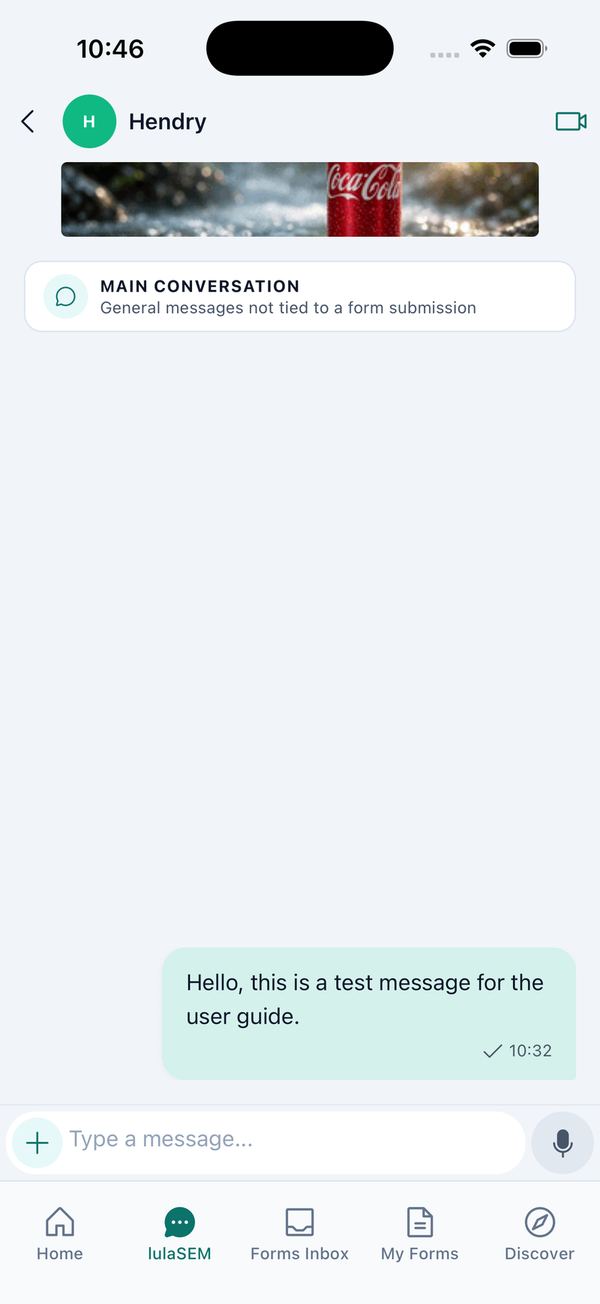
- Most conversations are started for you: a new one is created every time a client submits a form, and clients can message you from your provider page. General chat with the same client lives in the Main conversation.
- To start one yourself, tap + → New lulaSEM and enter the client's phone number (they must already use lulaFi), or pick someone under Recent lulaSEMs, Providers or Contacts.
- Type in Type a message… and send. The + button adds Photos, Camera, Files or Paste from clipboard; hold the microphone for a voice message.
- Press and hold a message to react, Reply, Copy text, Edit or Delete for everyone.
Group chats
Tap + → New group chat to keep a client, a colleague and yourself in one private conversation: name it, add people from contacts or by phone number. Tap the group name to see Admins and Members and to Make admin.
Safety & devices
Send an Emergency SOS
Double-tap the red button.
- On Home, double-tap the red emergency button quickly.
- Choose lulaFi Emergency Center to send the default SOS, or — once a trusted contact is set up — Voice message or Preset message.
- Confirm Send SOS. The recipient gets a message marked EMERGENCY · SOS with a map link to your location.
Linked devices and chat backup
Use lulaSEM on more than one phone.
- The list shows your devices and how many of your allowance are used (1/6). The Primary device controls linking and unlinking.
- Generate QR code lets a new phone join by scanning it from Link existing account. The new device asks the primary one for history — tap Approve sync.
- Chat history backup → Export creates an encrypted file plus a recovery key; Import restores it elsewhere. Keep the key safe.
Connect apps in the Marketplace
Apps that work with your provider account.
Browse All apps, tap Connect, then Continue to approve in your browser. Connected apps appear under Connected; Disconnect withdraws the access. Only apps relevant to providers are listed.
Account
Settings at a glance
Everything behind the gear button.
| Section | What you can do |
|---|---|
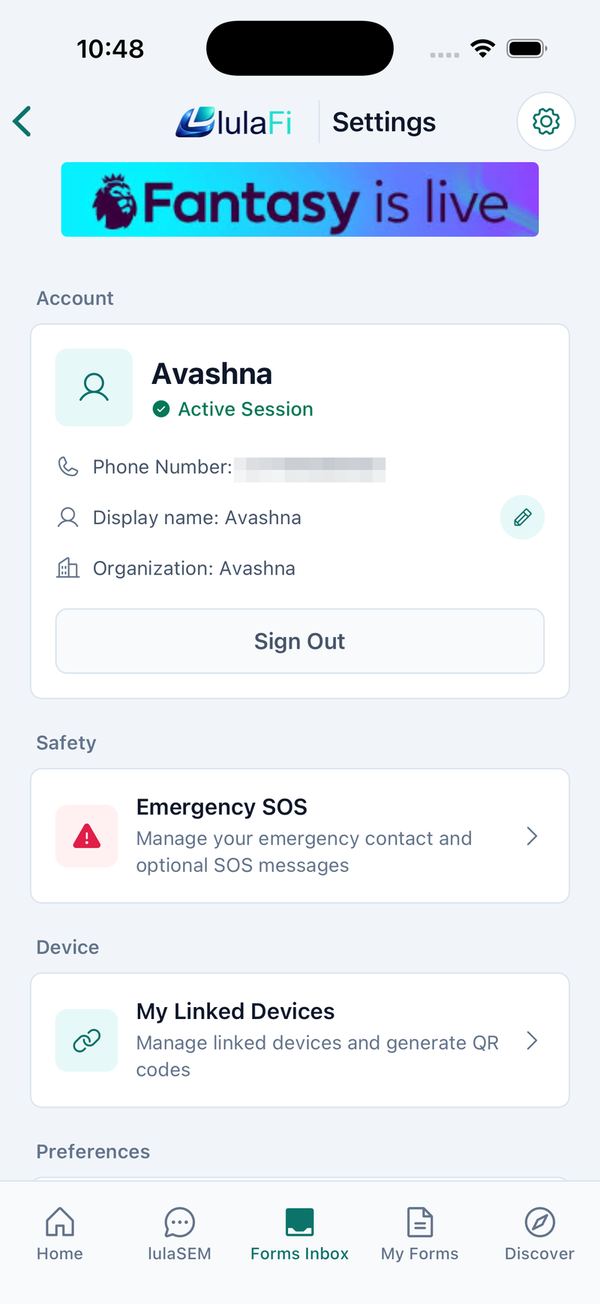
| Account | Your number, Organization, Edit display name, Sign Out. |
| Safety | Emergency SOS setup. |
| Device | My Linked Devices, backups and sync. |
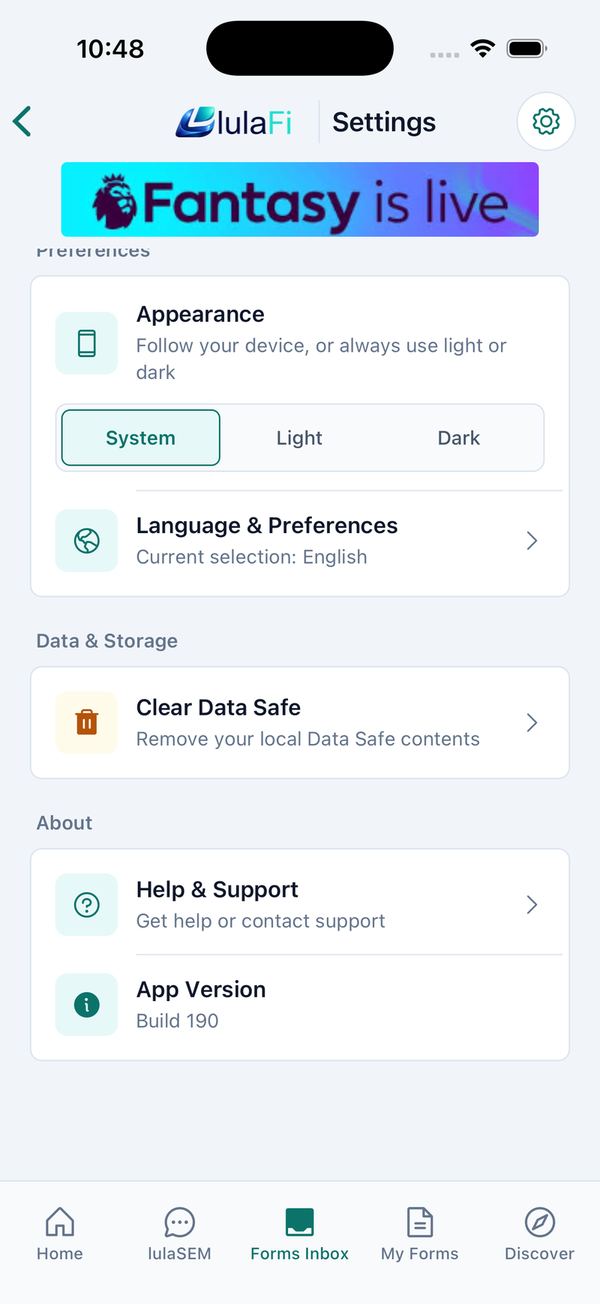
| Preferences | Appearance (System / Light / Dark) and Language & Preferences. |
| Data & Storage | Clear Data Safe — remove locally stored form details. |
| About | Help & Support (support@lulafi.com) and App Version — quote it when reporting a problem. |
Your organisation and provider group
What lives in the app and what lives in the portal.
- Your organisation appears under Settings → Account → Organization.
- Invitations to join your provider group are sent from the web portal; the invited person accepts them in their own app under Settings → Memberships → Provider invitations. A person can belong to only one provider group.
- Publishing forms, editing them and updating the profile clients see in Discover are all done in the portal.
Troubleshooting
Quick fixes for common problems.
| Problem | What to do |
|---|---|
| No OTP arrived | Check the number, wait for the countdown, tap Resend. |
| Approved, but I still see the client screens | Settings → Sign Out, then sign in again to refresh your session. |
| A submission is missing from the inbox | Pull down to refresh. If the client saw Submission failed, ask them to Retry from Failed submissions. |
| Cannot reply in a form conversation | It is Closed because the submission was deleted on one side. Ask the client to submit again. |
| Clients get a monthly limit error | Your plan's submission allowance is used up — contact lulaFi support. |
| I want to change our forms or profile | Use the lulaFi web portal. |
| Cannot link a new device | Start from the Primary device and unlink an old one if at the limit. |
| Still stuck | Email support@lulafi.com with your App Version from Settings → About. |